
AI VTuber Video GeneratorMake Your Original VTuber Move or Talk.
Animate VTuber image with a reference video
Pair one full-body or three-quarter VTuber image with a visible action. The same uploaded character carries across when you switch modes.
Use an original or licensed full-body or three-quarter character with visible limbs and room around the silhouette.
Choose one visible performer in a steady 3–30 second MP4 or MOV clip, or begin with a built-in action.
Upload the character image and motion reference together before generating.
Describe appearance and camera guidance; the reference clip supplies the visible movement.
Match orientation in the video. Recommended.
Choose whether the generated background follows the reference video or the character image.
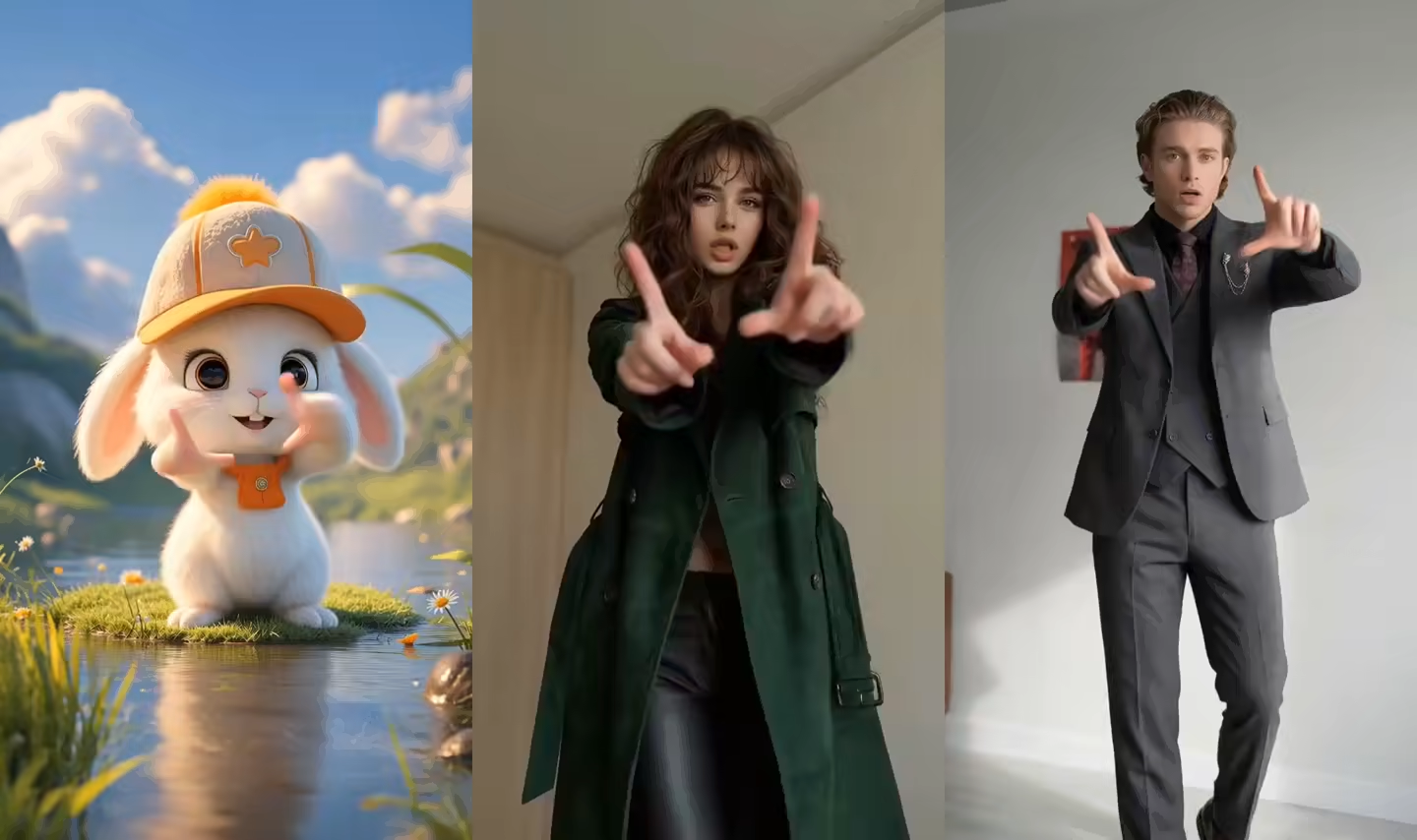
What does an AI VTuber Video Generator create?
An AI VTuber Video Generator turns one original or licensed character image into a rendered video. Move mode uses the image for character appearance and a reference clip for body timing, gestures, head movement, and visible choreography. Talk mode uses the portrait for appearance and combines it with a typed script and selected voice, or with an uploaded speech recording. Both routes are designed for creators who already have a character image and need a finished take without drawing every frame.
The output is a downloadable pre-recorded VTuber video. It is not a Live2D Model Maker, VRM Generator, 3D VTuber Maker, Webcam Tracking, OBS live avatar, real-time VTuber software, voice clone, or streaming runtime. It does not cut a layered PSD, export a rig, or create a transparent alpha-channel overlay. Add captions, gameplay, licensed music, and channel graphics in a separate editor.
Two practical workflows inside the AI VTuber Video Generator
Choose motion when performance is the priority and speech when the exact message is the priority.
VTuber animation from image and reference motion
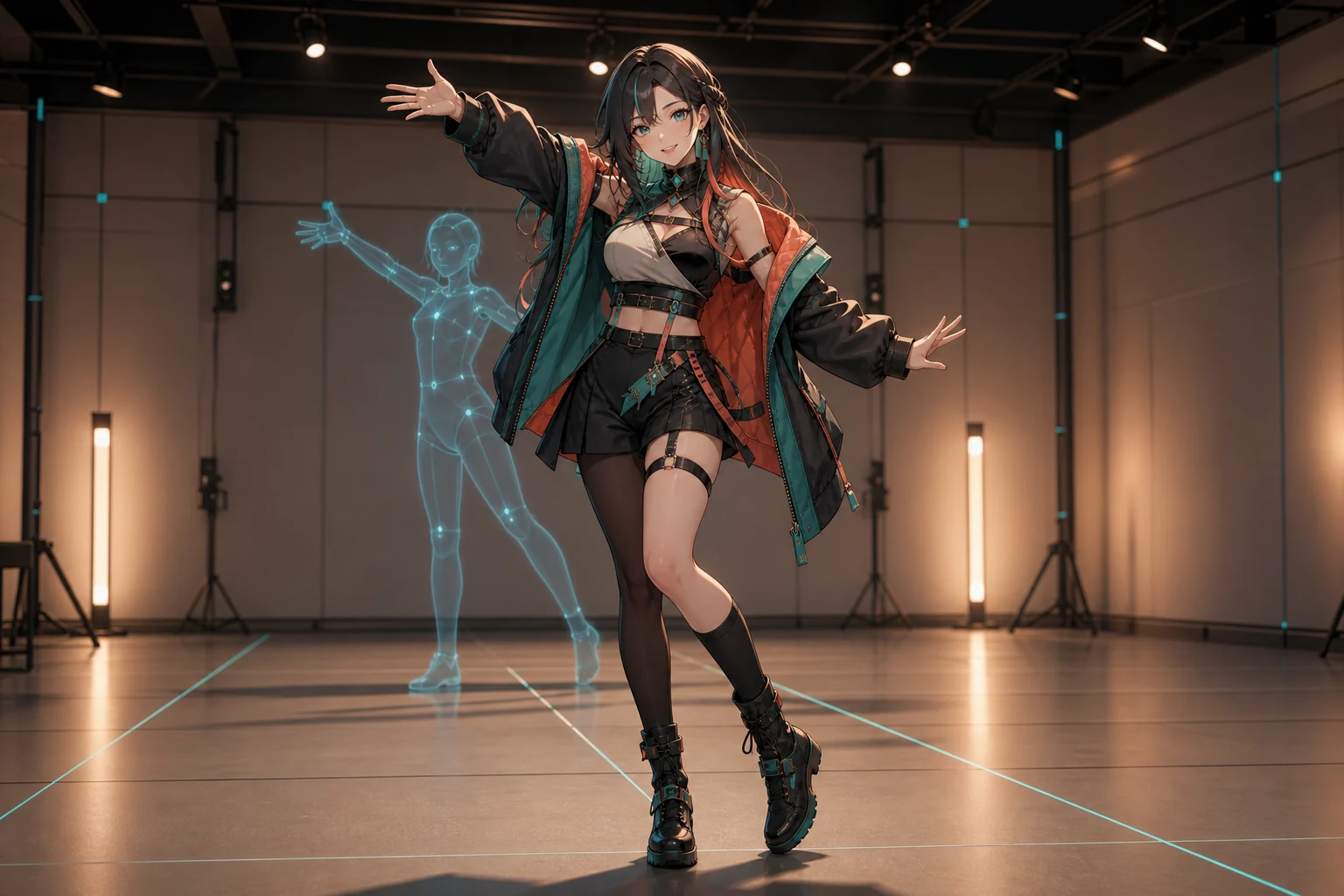
Use the AI VTuber Video Generator in Move mode for a wave, presentation gesture, reaction, walk, dance, or performance. Upload clear full-body or three-quarter art, then choose a built-in action or steady reference video. Match the pose and orientation to reduce missing limbs, costume drift, and awkward framing.
Use a talking VTuber generator from text
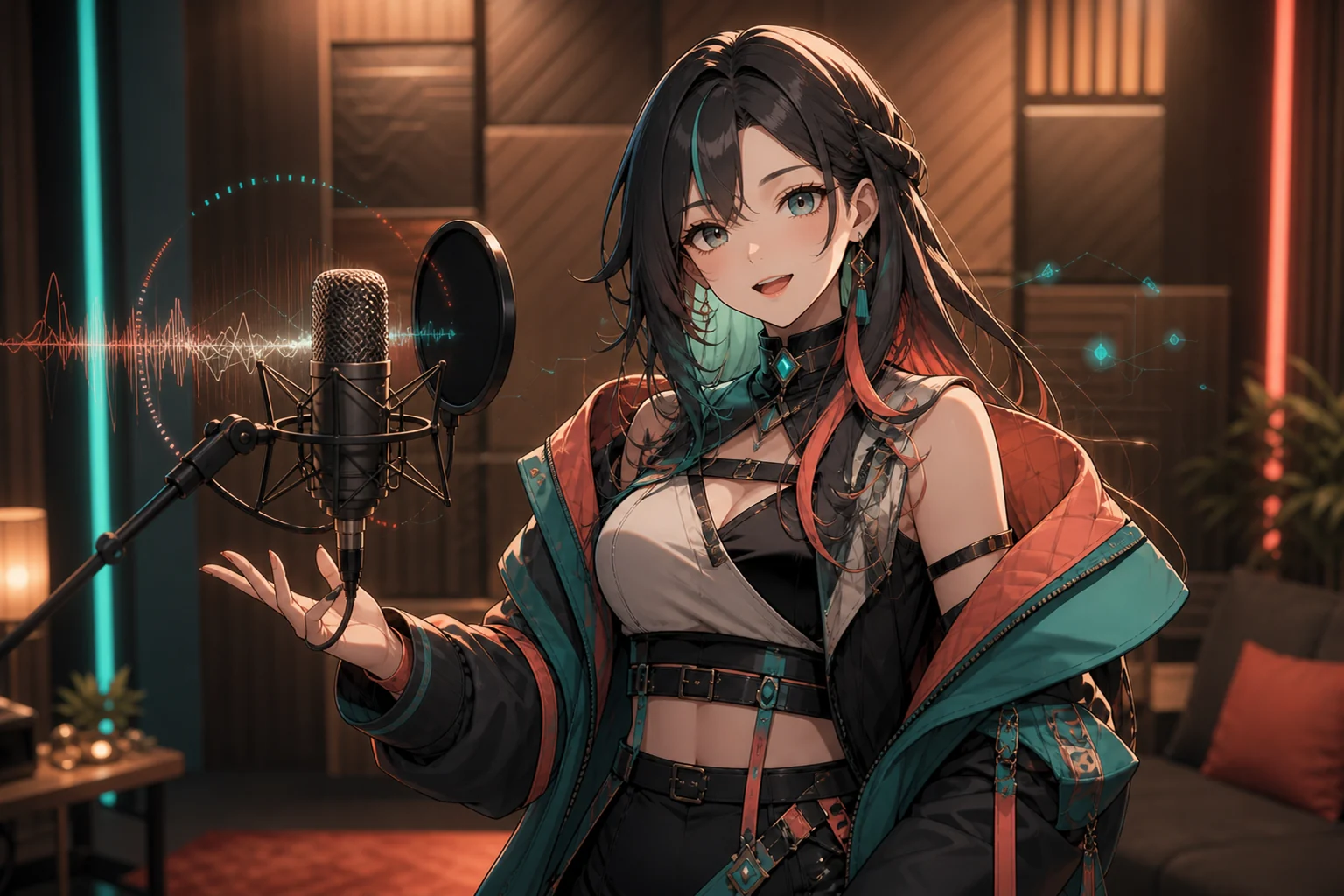
Use Talk for an intro, channel update, lore line, reaction, or call to action. Type a short script and choose an available voice and language. Deliberate punctuation and a front-facing mouth usually produce a cleaner first test than a long paragraph with several emotional turns.
Make VTuber character talk with your own audio
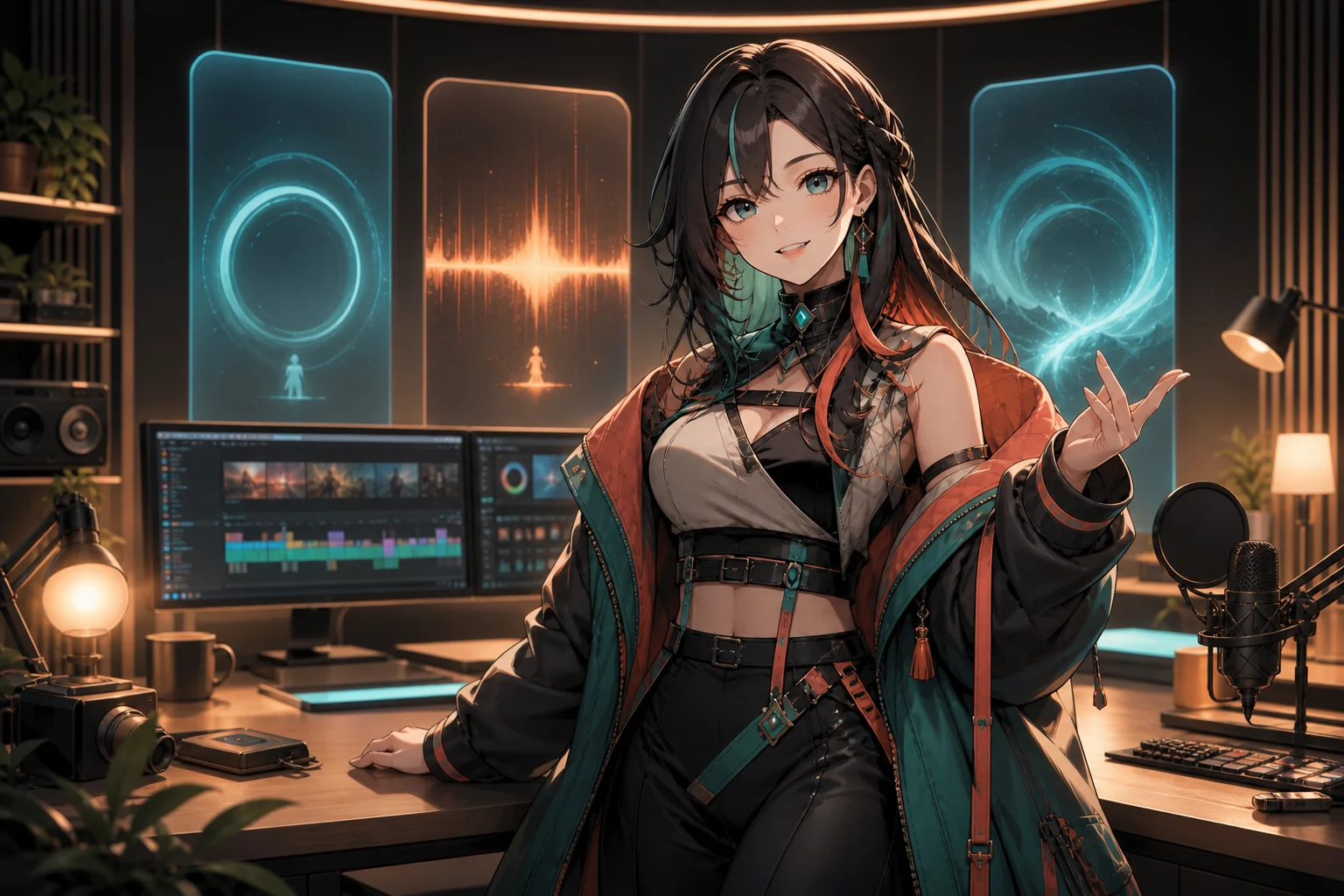
Upload authorized MP3, WAV, or M4A speech to keep your pronunciation, timing, emphasis, or emotion. The audio supplies cadence; it does not clone the speaker. Use one clean voice with little background music, then inspect mouth timing, eyes, jawline, and expression throughout the result.
Reuse one original character across short videos
Keep the same approved image for a debut series, reaction format, lore sequence, or weekly update. Reusing the identical file provides a familiar anchor, but perfect identity locking and a saved-character library are not promised. Check hair, eyes, outfit, accessories, hands, and proportions after every render.
How to use the AI VTuber Video Generator
Start with one clear creative goal, test a short take, and refine the source pairing before producing a series.
Upload your original VTuber image
Use art you own or are licensed to animate. Show the full body and visible limbs for movement, or a sharp front-facing face with an unobstructed mouth for speech.
Add motion, text, or authorized audio
Choose Move for a 3–30 second reference performance. Choose Talk for a typed script with an available voice or one clean 1–120 second speech recording.
Generate, review, and download
Watch the full take for facial stability, hands, costume details, lip timing, and framing. Regenerate from a cleaner source before downloading the MP4 for your edit.
Pre-recorded VTuber video ideas and long-tail workflows
Each format begins with the same original character image, then changes the performance or message for a specific publishing job.
VTuber intro generator
Create a short channel welcome, debut hook, stream recap opener, or recurring segment intro. Put the most recognizable phrase early and leave longer lore for the next clip.
VTuber short video generator
Make a concise reaction, joke setup, opinion, teaser, or creator update for TikTok, YouTube Shorts, and Reels. Choose a source and reference framed for the aspect ratio you plan to edit.
Gaming reaction and commentary
Record a reaction line or expressive movement, then combine the downloaded VTuber take with permitted gameplay in your editor. This workflow does not capture or edit gameplay automatically.
Lore and character storytelling
Turn a prepared backstory beat, prophecy, in-character diary line, or reveal into a repeatable visual format. Keep names and pronunciation consistent across separate scripts.
Language-specific creator messages
Prepare a reviewed script in a language currently shown in the form and select a suitable voice. Language choice synthesizes your text; it does not translate an existing script or video.
AI VTuber animation tests
Prototype a wave, dance, dramatic pose, or spoken character concept before investing in a larger production. A generated clip can test direction, but it is not a rig handoff for an animator.
Who uses an AI VTuber Video Generator?
The workflow fits creators who need edited, asynchronous character content rather than a live tracking setup.
New and pre-debut VTuber creators
Test an original character in a welcome, reveal, or short performance before building a larger pipeline. The result is a concept video, not proof that a live-ready model exists.
YouTube, TikTok, and Reels creators
Produce repeatable scripted shorts without recording face tracking each time. Add captions, music, gameplay, and platform-safe framing in a separate editor.
Artists and character IP teams
Explore a permitted character in motion or speech for a pitch, social concept, message, or style test. Review design fidelity and rights before commercial use.
Workflow essentials for AI VTuber Video Generator
Inputs, recommended setup, and the most common fixes—summarized in one compact guide.
Inputs and setup
- One original or licensed JPG, JPEG, PNG, or WebP image; Move: 3–30 second MP4 or MOV; Talk: typed text or MP3, WAV, or M4A speech.
- Speech length: Talk supports 1–120 seconds; the live form calculates duration.
- 720p or 1080p where shown in the selected workflow; Account and credits required; downloadable rendered video.
- Use sharp approved artwork with one clear character, a simple background, and enough space around every limb needed for the action.
Two quick fixes
AI VTuber Video Generator FAQ
What is an AI VTuber Video Generator?
Can I animate a VTuber image without Live2D rigging?
How do I make a VTuber character talk?
Can I create a VTuber intro or short video?
Can I reuse the same VTuber character across videos?
Is this real-time VTuber software for streaming?
Can I monetize an AI VTuber animation?
Use the AI VTuber Video Generator for your next pre-recorded clip
Choose Move for a performance or Talk for a script, then review the take.