
AI Performance Capture
Perform the Scene. Direct the Character.
Choose whether the result follows the performer's angle or stays closer to the character image.
Available with Kling 3.0. Choose whether the performance video or character image provides the main visual direction for the generated background.
Your video drives the acting. Use the prompt only to guide the scene around the character.
Your driving video guides the timing, expression, visible gestures, lip sync, and audio. The result is AI-generated, so facial, hand, background, and motion details can vary.
Your character performance will appear here
Add a character and a driving performance, then generate your first take.
From Your Acting Take to a Finished Character Video
AI Performance Capture combines one character image with one recorded performance to create a rendered 720p or 1080p video. Your take directs the dialogue timing, facial reactions, head movement, posture, visible gestures, body language, and voice.
Download the character-led video for presenter segments, dialogue scenes, reactions, interviews, music concepts, mascot explainers, social posts, and larger edits.
Direct Character Videos with Your Own Performance
A prompt can describe an action. Your acting take directs the pauses, emphasis, reactions, gestures, and emotional timing that make the scene feel intentional.
Record Yourself in the Browser
Use your camera and microphone to perform directly, or upload a take recorded on your phone. The built-in recorder keeps browser recordings within the supported duration.
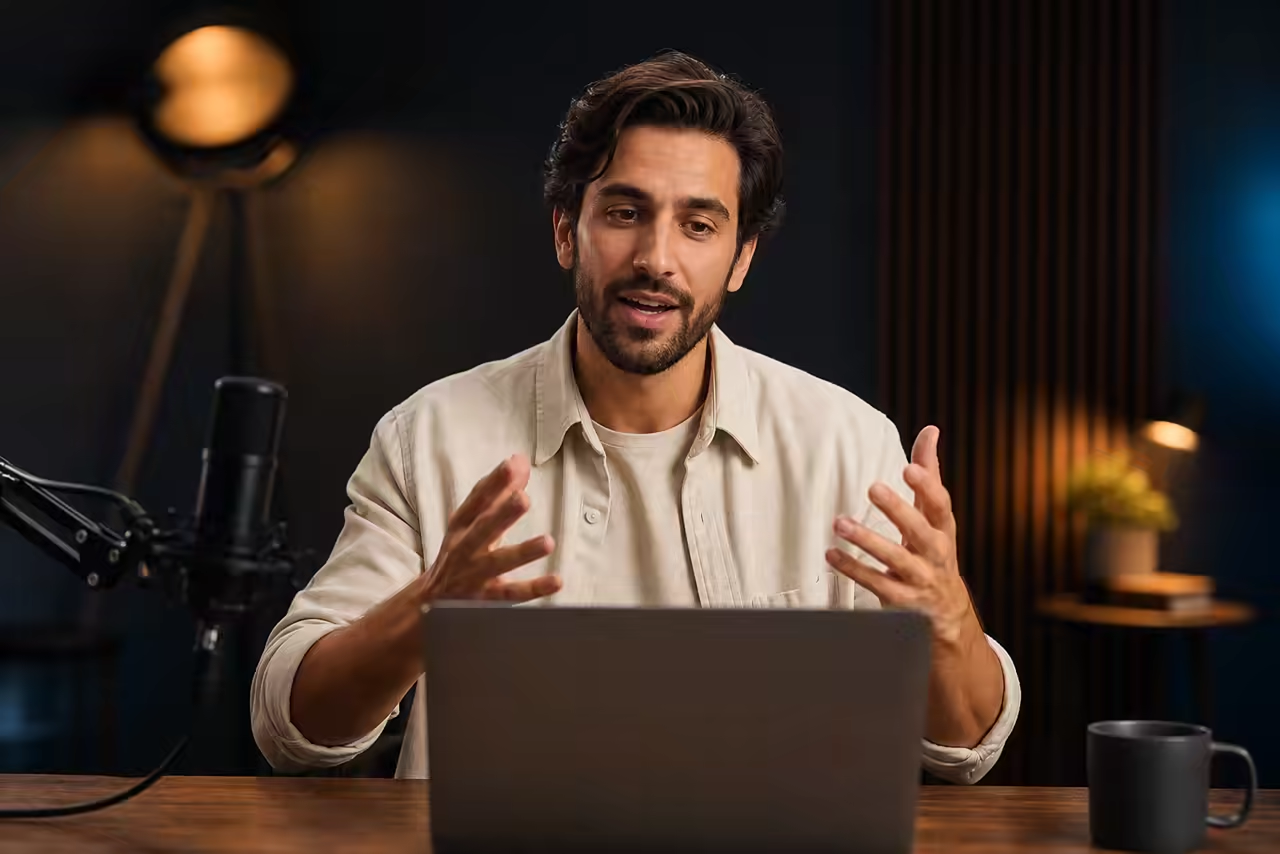
Direct Timing and Emotion
Use your own pauses, emphasis, reactions, and changes in energy to guide the generated character instead of asking a text prompt to guess the delivery.
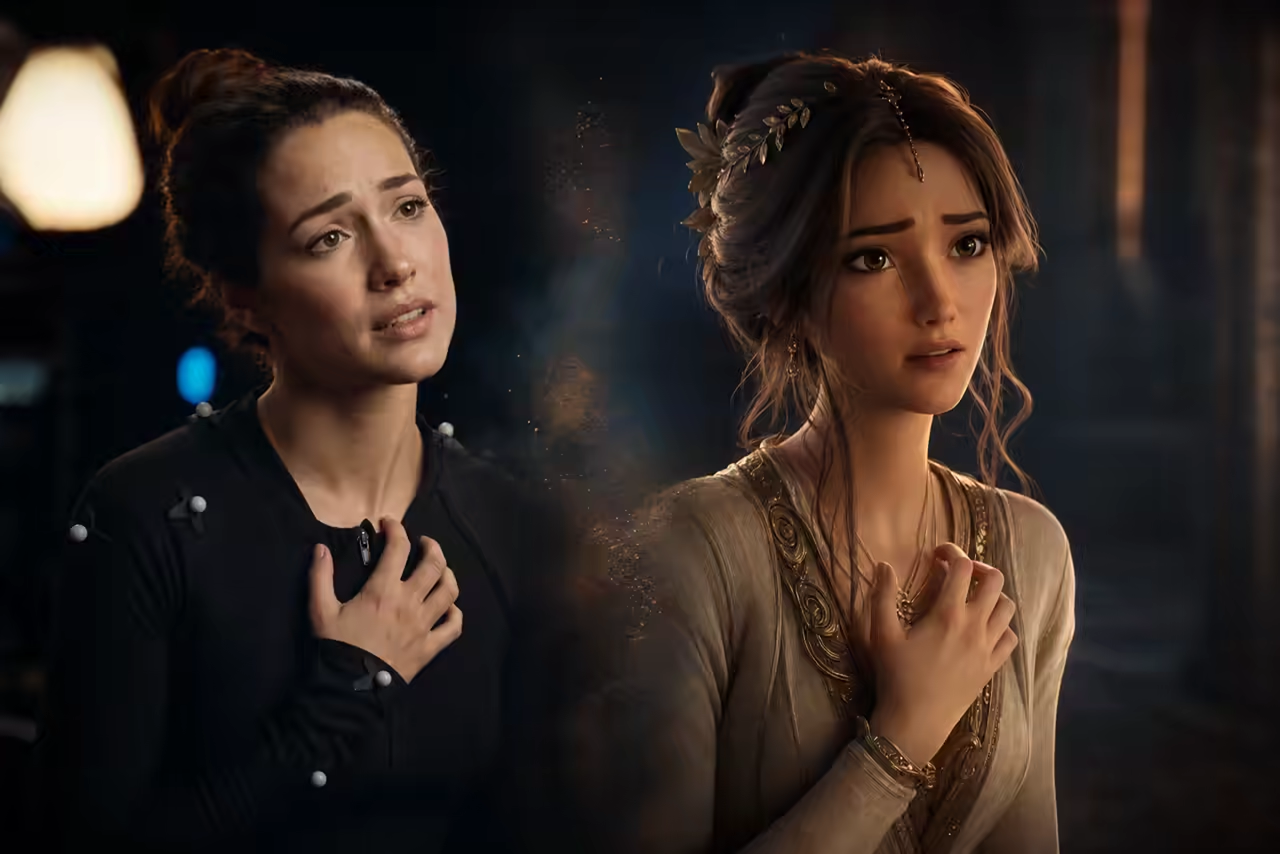
Guide Visible Gestures and Body Language
Head movement, posture, upper-body acting, and clearly visible hand gestures give the model more specific direction. Small, hidden, or very fast movements may be simplified.
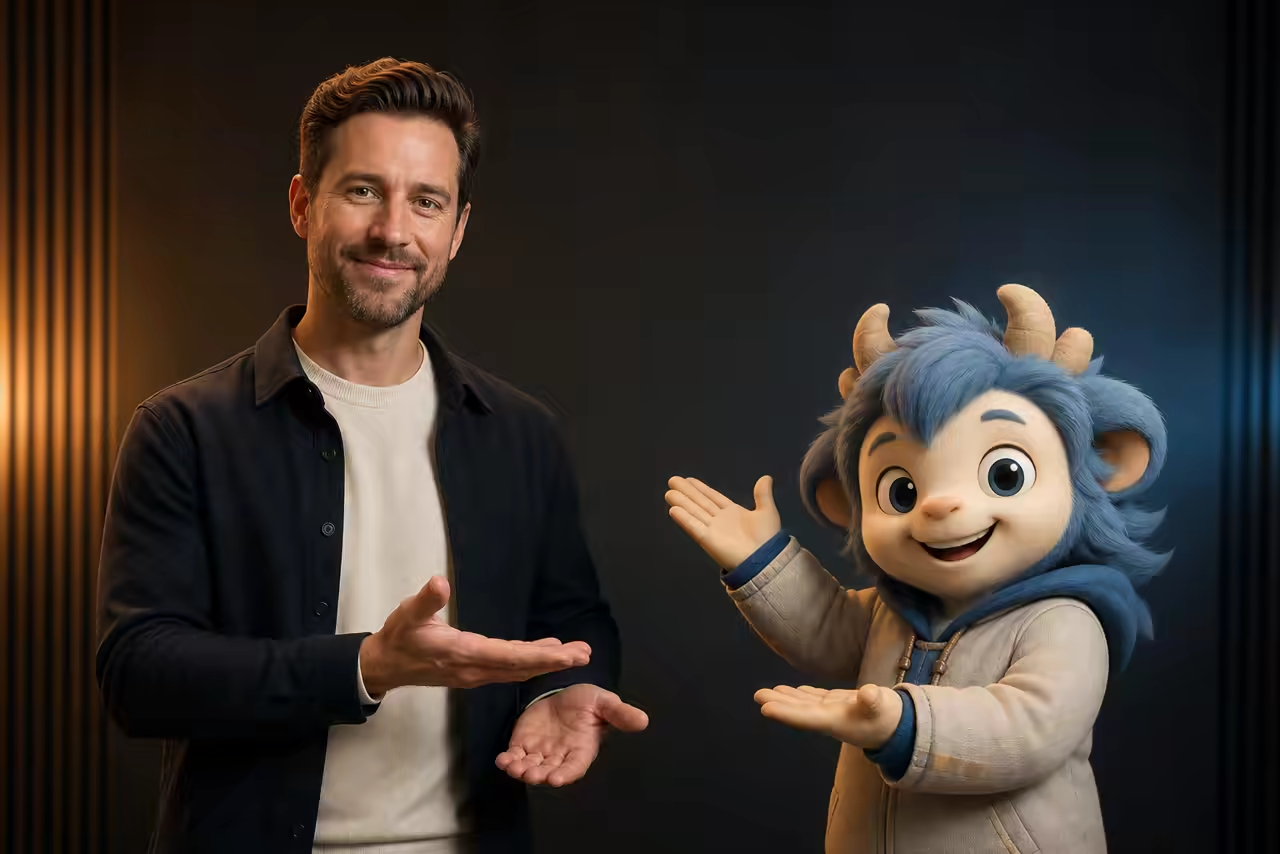
Choose the Strongest 3–30 Second Take
Trim a desktop upload before generating. On mobile, record or select a continuous 3–30 second clip with the device camera when browser-side trimming is unavailable.
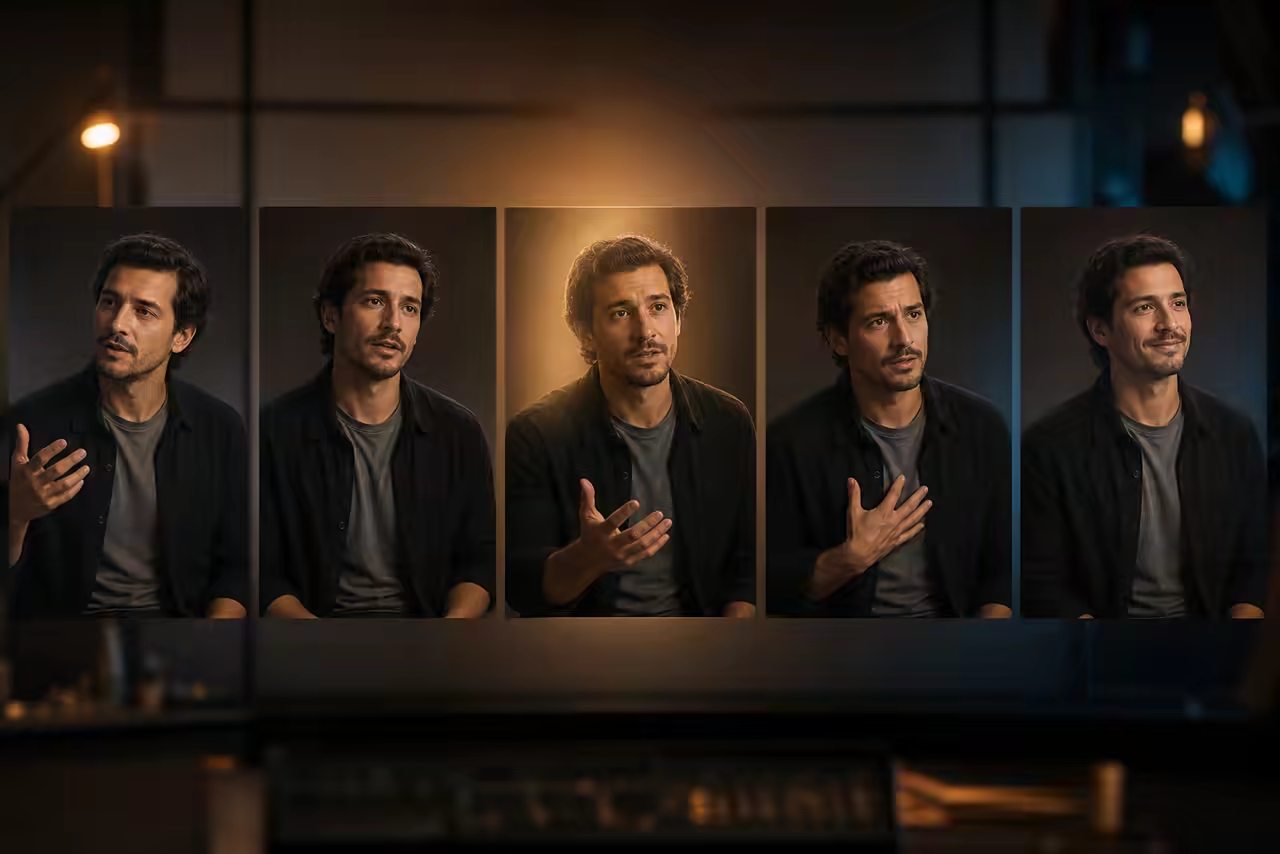
Voice-Led Delivery and Lip Sync
The driving video's audio guides the spoken delivery and generated mouth movement. Use a clear voice recording and review the preview because lip-sync accuracy can vary by take and model.
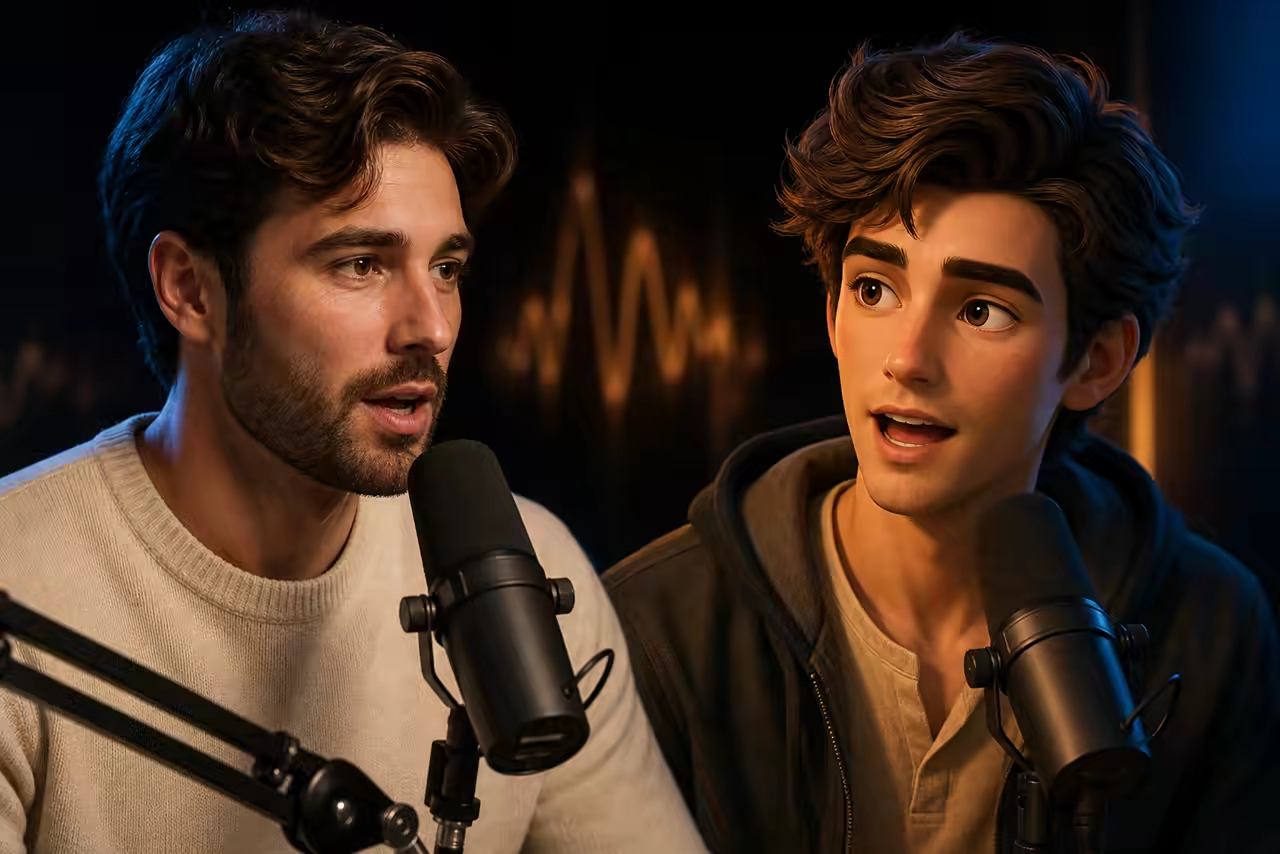
Preview First, Finish in 1080p
Use 720p to check framing, identity, gestures, and timing at a lower cost. Move to 1080p after the performance looks right, then choose the supported orientation and background source.
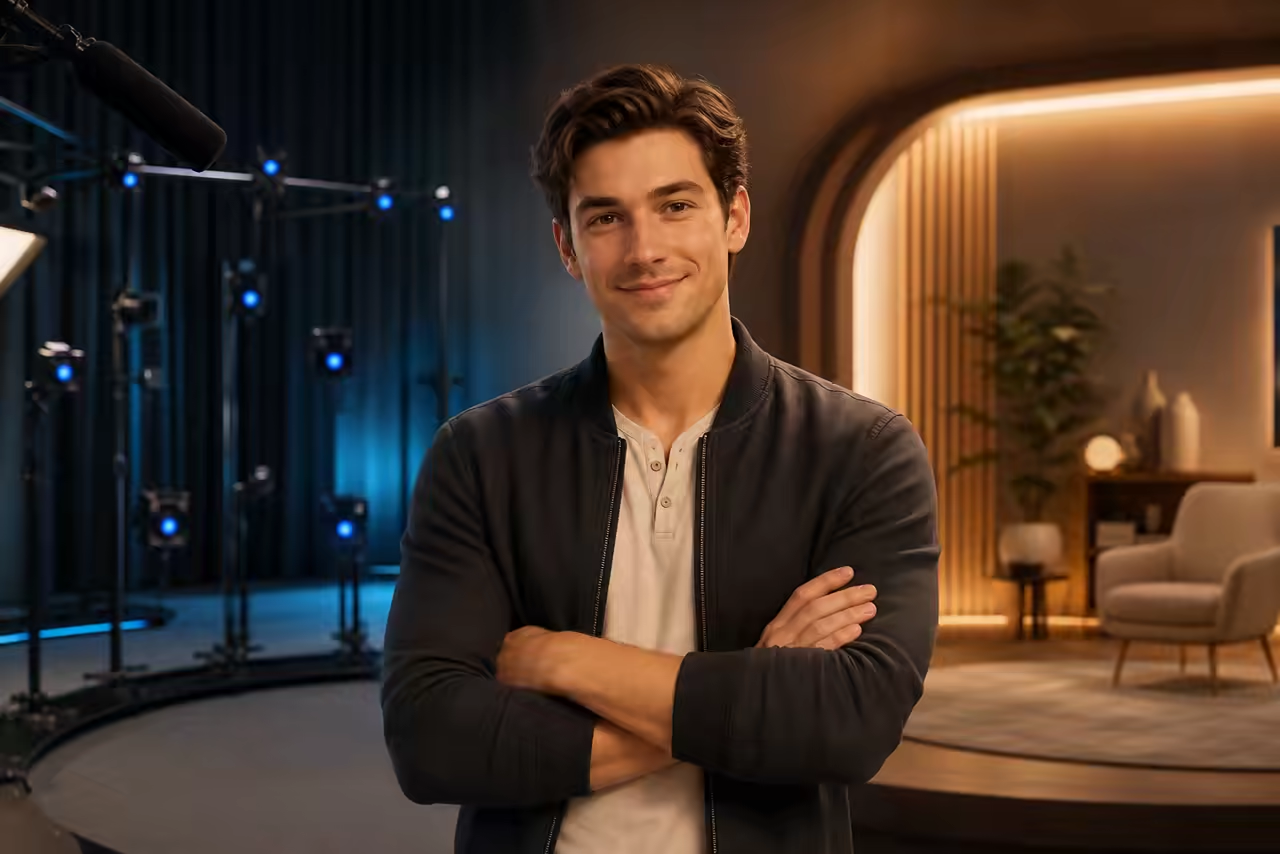
How AI Performance Capture Works
Go from your acting take and a character image to a finished character-led video in three steps.
Record or upload your performance
Act the scene in one continuous take. Speak naturally, keep one performer visible, and keep important gestures inside the frame.
Choose a clear character image
Upload one readable, human-like character. Portraits, illustrated mascots, anime art, and stylized renders work best when their framing resembles the performer.
Preview, refine, and generate
Generate a 720p preview, check the identity and performance, then adjust the inputs or create a higher-detail 1080p version.
What Is AI Performance Capture?
AI performance capture is an actor-led character video workflow. Instead of describing motion with text, you record the scene yourself so the model can use your timing, facial acting, body language, visible gestures, and voice as creative direction.
The Motion Control AI generation platform turns that direction into a rendered character video designed for creators, presenters, storytellers, educators, performers, and brand teams.
What Your Performance Directs
A clean, readable acting take gives the model stronger direction for timing, expression, motion, voice, and visual continuity.
Designed to Carry the Performance
Dialogue timing, head movement, clear facial reactions, posture, upper-body motion, visible gestures, and source audio provide the main direction for the generated take.
Make Difficult Details Easier to Read
Keep fingers, facial reactions, profile changes, full-body travel, and important gestures visible. Moderate speed, stable framing, and limited occlusion help these details carry into the generated take.
A Downloadable Character Video
Generate a finished MP4 for presenter segments, dialogue, reactions, interviews, music concepts, mascot explainers, social posts, and video-editing timelines.
AI Performance Capture for Dialogue, Reactions, and Presenters
Use your own delivery for character-led content where timing, voice, and emotion matter more than a generic motion preset.
Host and Presenter Videos
Perform a product explanation, tutorial, or announcement and use the take to direct a virtual host or mascot.
Emotional Dialogue
Direct pauses, emphasis, facial reactions, and body language for short monologues and character scenes.
Reaction and Social Clips
Turn surprise, excitement, disbelief, or subtle reactions into expressive short-form character content.
Podcast and Interview Moments
Recreate a short speaking segment with a character while keeping the rhythm and intent of the original delivery.
Music and Performance Clips
Use vocal timing, head movement, hand emphasis, and stage presence to guide a stylized character take. Preview carefully when movement is fast.
Brand Mascot Explainers
Give a mascot the delivery of a real spokesperson for explainers, onboarding, campaign concepts, and social posts.
Record Better Inputs for AI Performance Capture
A clean, continuous take gives the model clearer direction and makes the preview easier to evaluate.
Keep one performer visible
Frame one person clearly from the waist or chest up, with the face and important hand gestures visible.
Use one continuous shot
Avoid cuts, sudden camera movement, heavy occlusion, and abrupt changes that interrupt the performance signal.
Record a clean voice track
Reduce background noise and keep the microphone level consistent so the model receives a clearer audio reference.
Match framing and the opening pose
Use a character image with a similar camera angle, body crop, and starting pose when you want a steadier transition into the take.
Quick input check
One continuous 3–30 second take
Follow the active duration shown in the generator and avoid edits inside the clip.
Check 720p before 1080p
Confirm identity, framing, hands, and timing before spending more on the final version.
Choose the Right AI Animation Workflow
Related terms often appear in the same search results, but they solve different production tasks.
- AI Performance Capture
- Your acting video + one character image → a rendered 720p or 1080p character video
- AI Motion Capture / Mocap
- Human movement video → editable 3D skeleton or FBX/BVH/GLB data for a DCC or game engine
- Lip Sync / Talking Avatar
- Audio or text → mainly mouth and facial animation for a speaking portrait
- Motion Control AI
- Any suitable reference video + character image → a motion-guided generated character video
- Text-to-Video
- A prompt and optional references → a new clip without a precisely directed acting take
Get a Stronger First Take
Use the checklist before generating, then match common visual problems with a practical adjustment.
Before you generate
- Use one performer and one continuous 3–30 second clip.
- Keep the face and important hand gestures visible from the start.
- Match the character image to the performer's half-body or full-body framing.
- Use moderate movement without sudden turns, fast travel, or heavy occlusion.
- Keep the camera steady and avoid cuts or large zoom changes.
- Record clear, consistent voice audio when spoken delivery matters.
- Leave enough room in the frame for the largest gesture.
- Start with 720p, evaluate the result, and use 1080p after the take works.
Common problems and practical fixes
AI Performance Capture FAQ
What does AI Performance Capture transfer?
What do I download after generation?
How does AI Performance Capture use my acting take?
Can I record my performance directly on this page?
Does the result keep my original audio and lip sync?
How long can the driving performance be?
What kind of character image works best?
What equipment do I need to capture a performance?
How do I move from recording to a finished video?
How can I improve performance fidelity?
Can I capture multiple performers in one clip?
What happens if the face or hands leave the frame?
How is this different from lip sync or a talking avatar?
What is the difference between Performance Capture and Motion Control AI?
Can I use AI Performance Capture on mobile?
How do I guide the character and background?
Direct a Character with Your Own Performance
Record one clear take, preview the result, refine the inputs, and move to 1080p when the performance works.