
AI Talking Avatar GeneratorOne Familiar Face. A New Message Whenever You Need It.
Use one approved, front-facing person or character with the eyes and mouth clearly visible.
Keep the first version concise, then choose a voice and language below.
What is an AI Talking Avatar Generator?
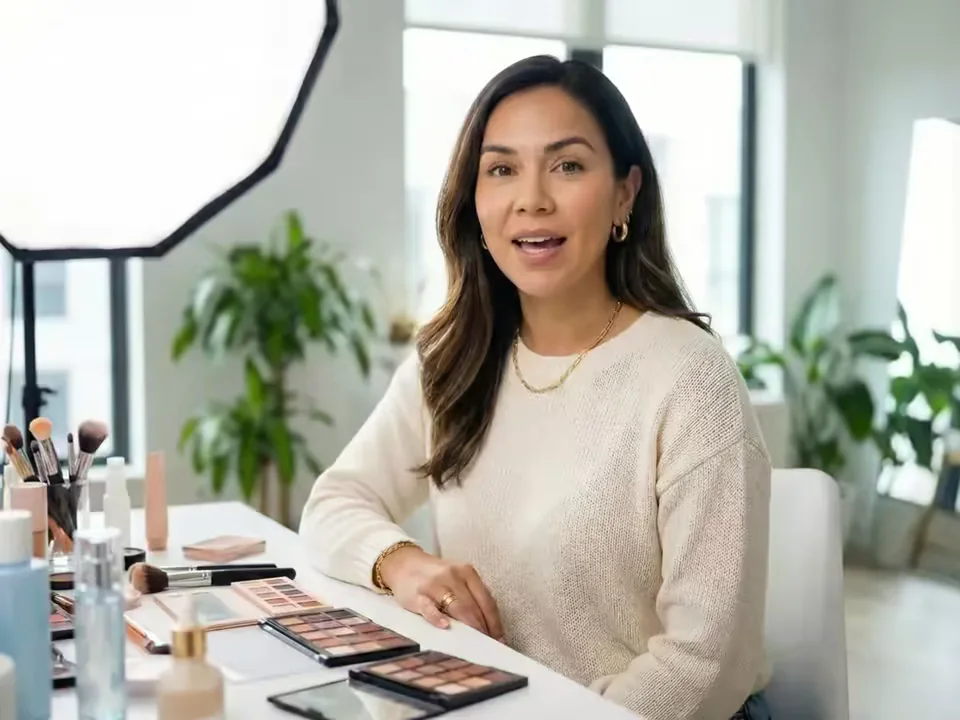
An AI Talking Avatar Generator turns one authorized portrait into a speaking video. The portrait supplies the visible identity; your typed script and selected voice, or your uploaded recording, supplies the words, timing, and delivery. It is a focused way to create a talking avatar from a photo without recording a fresh camera take every time the message changes.
This page is designed for a recurring presenter or character, not a one-off novelty. Re-upload the same approved source image when you want a channel welcome, weekly update, lesson introduction, brand announcement, or another language version. The current workflow does not save an avatar permanently, clone a voice, translate an existing video, stream live, or build a 3D character. Those are separate capabilities and are not implied here.
What an AI Talking Avatar Generator creates from text or audio
Choose the speech source that fits the message, then keep the portrait, permission, and output expectations clear.
Turn a prepared script into a speaking avatar
Type the exact line, select a generated voice and one of the languages currently listed in the form, and create a text-to-talking-avatar video. This works well for repeatable intros, concise updates, announcements, and educational transitions where the wording changes more often than the visual identity.
Keep the cadence of your own voice recording
Switch to Audio when pronunciation, emotion, timing, or personal delivery matters. Upload one clean MP3, WAV, or M4A recording and the avatar follows that speech track rather than generating a voice from text. Use only recordings you are authorized to process.

Reuse one source portrait across a content series
Keep the original approved image and use it again for a new script or recording. That gives a personal brand, course, or fictional host a familiar visual anchor. Because there is no saved-avatar library yet, retain the source file and review identity consistency on every new render.
Choose voices, languages, and output resolution
Text mode currently offers a defined voice list and English, Spanish, French, German, Italian, Portuguese, Japanese, Korean, and Hindi language choices. Select 720p or 1080p before generation. Choosing a language changes speech synthesis; it does not automatically translate your script.
Work with real people or stylized characters
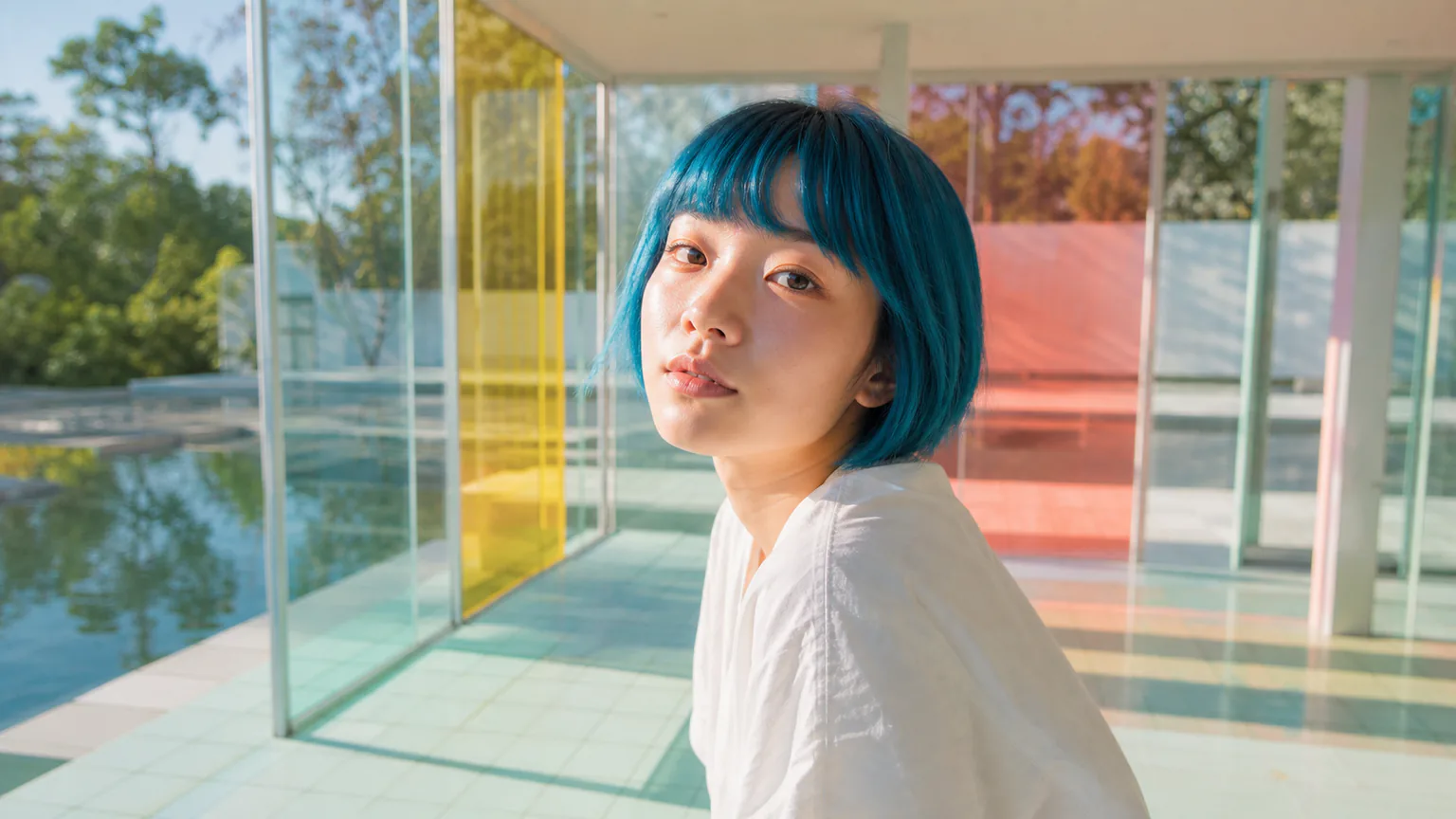
A sharp headshot, illustrated host, or permitted brand character can become an AI speaking avatar when it has one readable face and an unobstructed mouth. Natural results still depend on source quality, so inspect lips, eyes, facial shape, timing, and expression before publishing.
How to create a talking avatar from a photo
Start with one clear portrait and one short message, then refine the source instead of hiding problems with a long prompt.
Upload an approved portrait
Choose one front-facing person or character with even light, a sharp face, and a clearly visible mouth. Confirm that you have permission to animate the identity.
Enter text or add speech audio
Use Text for a generated voice and selectable language, or Audio for your own cadence. Keep the first test concise and use one speaker only.
Generate, review, and download
Check mouth timing, blinking, facial stability, pronunciation, and the current credit estimate. Download the MP4 only after the complete unedited result looks right.
Talking-avatar video ideas for recurring content
Use a consistent source portrait while changing the message for each real audience and channel.
Personal brand and creator updates
Prepare a channel welcome, weekly update, event reminder, or short point of view with the same approved creator portrait. Change the script without arranging another camera session, but review each result rather than assuming identity will remain perfectly locked.
Lesson intros and educational characters
Open a module, introduce a concept, or narrate a short character-led segment. Use simple sentences and confirmed pronunciations, and label generated presenters appropriately when the context could otherwise imply a real recording.
Brand announcements in available languages
Create separate approved scripts for supported languages and select a matching generated voice. This is useful for concise regional updates, but it is not automatic translation, dubbing, subtitle generation, or a live multilingual avatar.
Workflow essentials for AI Talking Avatar Generator
Inputs, recommended setup, and the most common fixes—summarized in one compact guide.
Inputs and setup
- One authorized JPG, JPEG, PNG, or WebP portrait; Typed text with a generated voice, or MP3, WAV, or M4A audio.
- Speech length: 1–120 seconds; the live form calculates duration from text or audio.
- 720p or 1080p selected before generation; Account and credits required; downloadable MP4 output.
- Use one sharp, front-facing face with the eyes, jawline, and complete mouth visible.
Two quick fixes
AI Talking Avatar Generator FAQ
What is an AI talking avatar generator?
How do I create a talking avatar from a photo?
Can I type a script or upload my own audio?
Can I reuse the same portrait for more videos?
Which voices and languages are available?
What image makes the most natural talking avatar?
Is there a free generation, watermark, or credit limit?
Can I use an AI talking avatar commercially?
How are uploaded portraits and audio handled?
How is a talking avatar different from a talking photo or lip-sync tool?
Give one approved portrait its next message
Start with a short script or clean recording, check the live credit estimate, and review the complete talking-avatar result before you share it.