
AI Lip Sync Generator
For Video, Photo & Characters
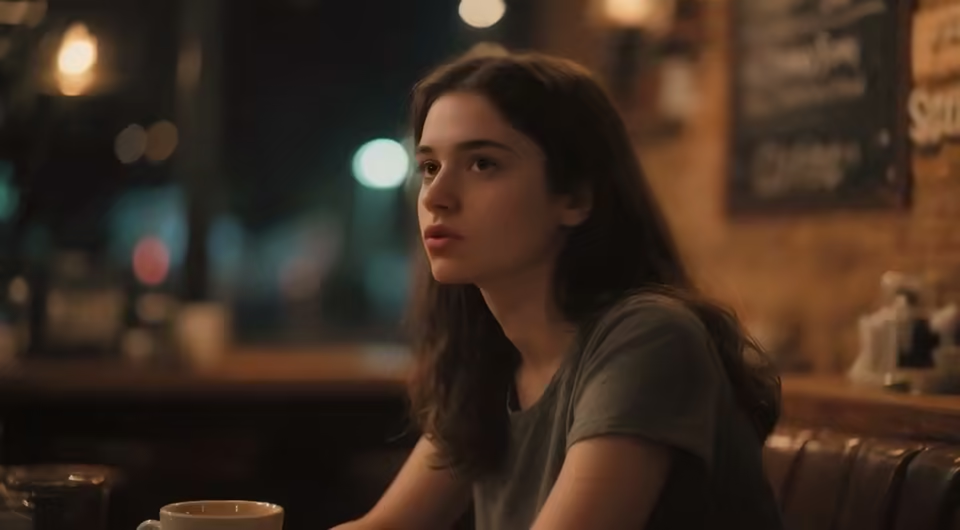
One AI lip sync generator for videos and character images
The default AI video lip-sync workflow uses PixVerse Lip Sync: upload an existing character video, add a replacement audio track, and generate a new video with synchronized visible mouth movement. It is designed for turning audio into a lip-synced video, including existing-video localization workflows.
If your source is a still image, switch to P Video Avatar. That secondary workflow creates AI photo lip sync from uploaded audio or a written script, so you can lip-sync an image to audio while keeping the broader Lip Sync page focused on video first.
Video-first AI lip sync, with photo mode when needed
Choose the input path that matches the media you already have and the result you need.
AI video lip sync
Upload an existing video and replacement speech audio to synchronize visible mouth movement with the new track.
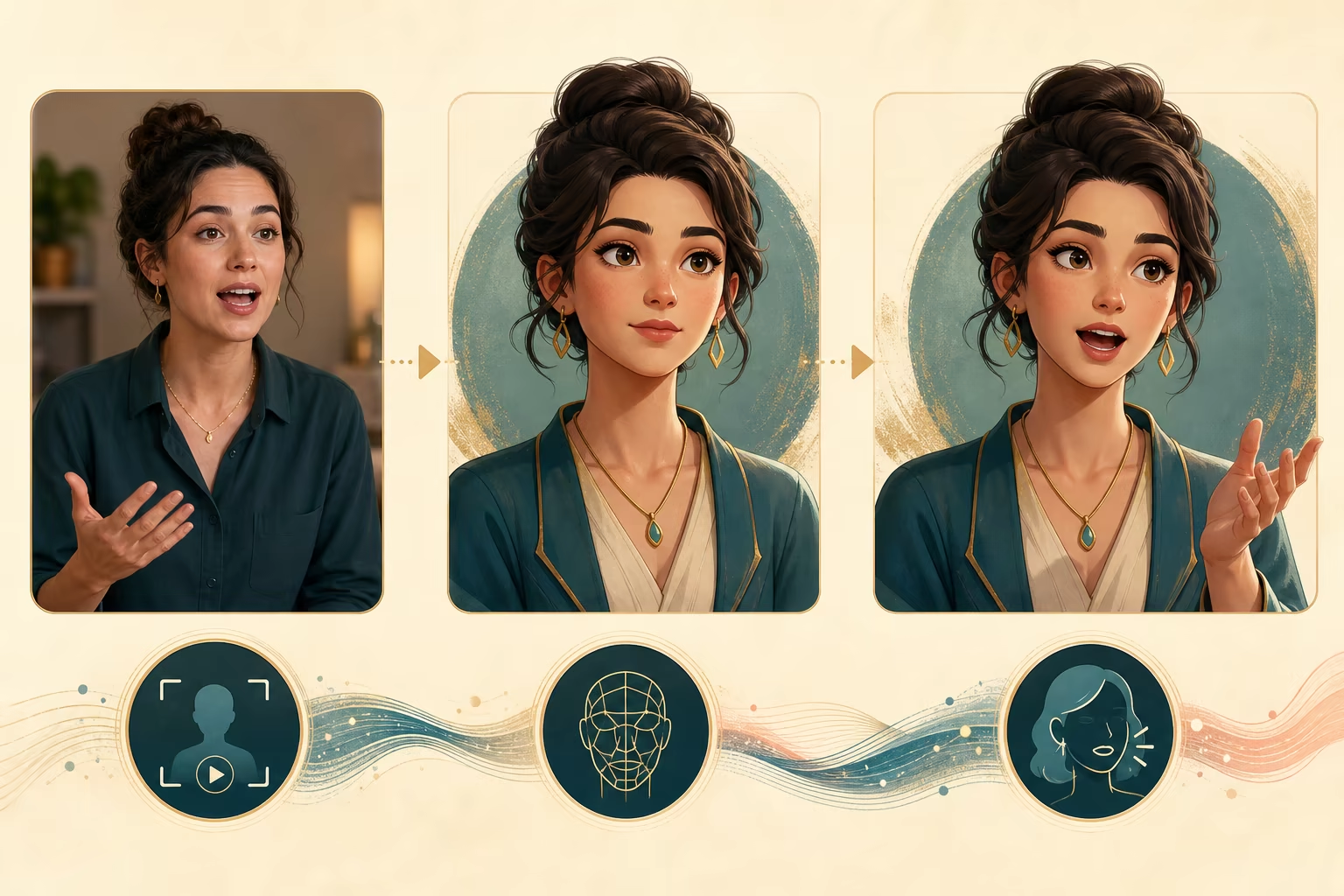
Audio-driven lip sync video
Use one clean speaker track for dubbing, localization, rewritten dialogue, and alternate voice versions.
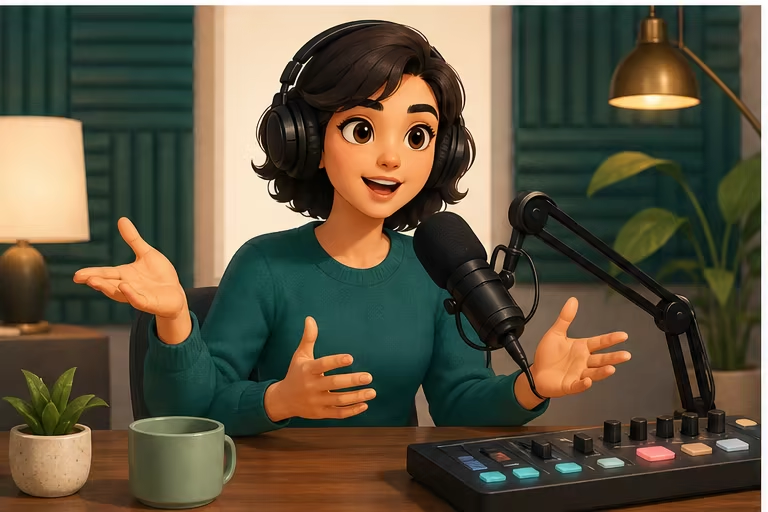
AI photo and character lip sync
Switch to photo mode for realistic, illustrated, or cartoon characters and drive the image with audio or text.
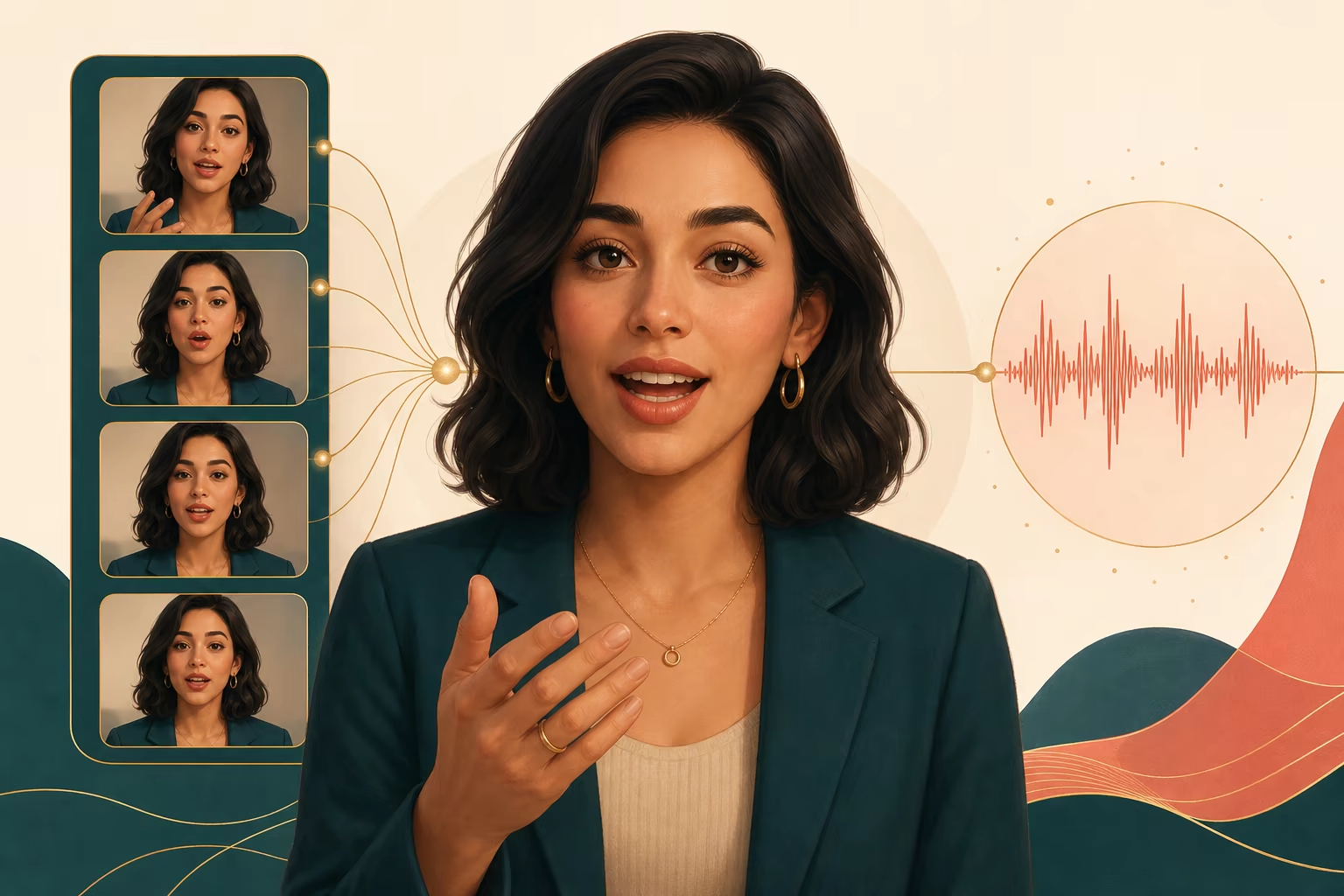
How to lip-sync an existing video with AI
Choose the workflow that matches the media you already have. The form changes automatically with the selected model.
Upload an existing character video
Start in PixVerse Lip Sync with a clear character video where the mouth remains visible.
Upload replacement speech audio
Add one clean voice track with little background noise, music, or overlapping dialogue.
Generate and review the lip sync
Create the video, check mouth timing and visual consistency, then download the finished MP4.
Ways to use the AI lip sync generator
Create new speech versions from existing footage or animate a permitted character image when no video exists.
Localized video dialogue
Pair an existing presenter or character clip with translated or rewritten speech for a new audience.
Character and avatar videos
Create alternate dialogue for virtual presenters, story characters, game concepts, and social content.
Cartoon lip sync
Synchronize an existing cartoon clip or animate one illustrated portrait with speech.
Workflow essentials for AI Lip Sync Generator
Inputs, recommended setup, and the most common fixes—summarized in one compact guide.
Inputs and setup
- PixVerse Lip Sync — existing video plus uploaded audio; P Video Avatar — portrait image plus script or audio.
- Image formats: JPG, JPEG, PNG, and WebP.
- Uploaded audio, or script and generated voice in photo mode; 720p or 1080p MP4, selected before generation.
- Use a front-facing character with a visible mouth and minimal obstruction.
Two quick fixes
AI Lip Sync Generator FAQ
Can I lip-sync an existing video to new audio?
Can I create AI photo lip sync from one image?
Do I need to record my own voice?
Which model should I choose?
What images work best for characters?
Are the preview videos actual model examples?
Explore AI Lip Sync Generator
Choose a focused workflow inside the AI Lip Sync Generator collection.
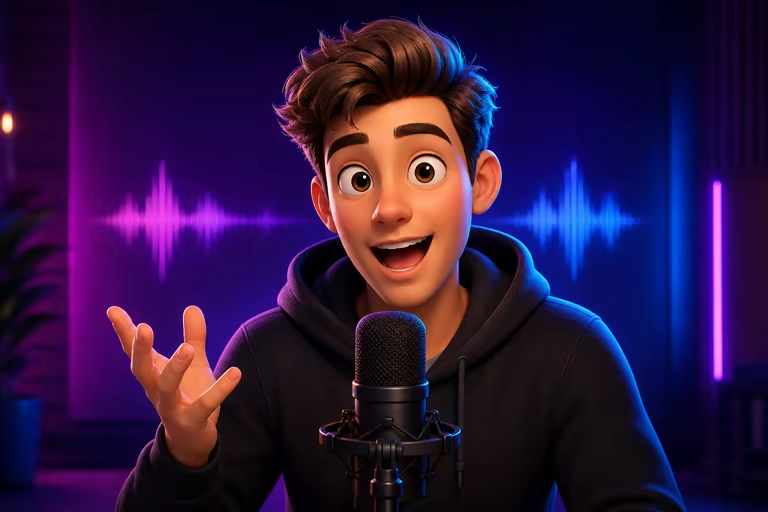
AI Cartoon Lip Sync Generator
Make a cartoon character talk from one image and a script or audio, or lip-sync an existing cartoon video to new speech.
Open tool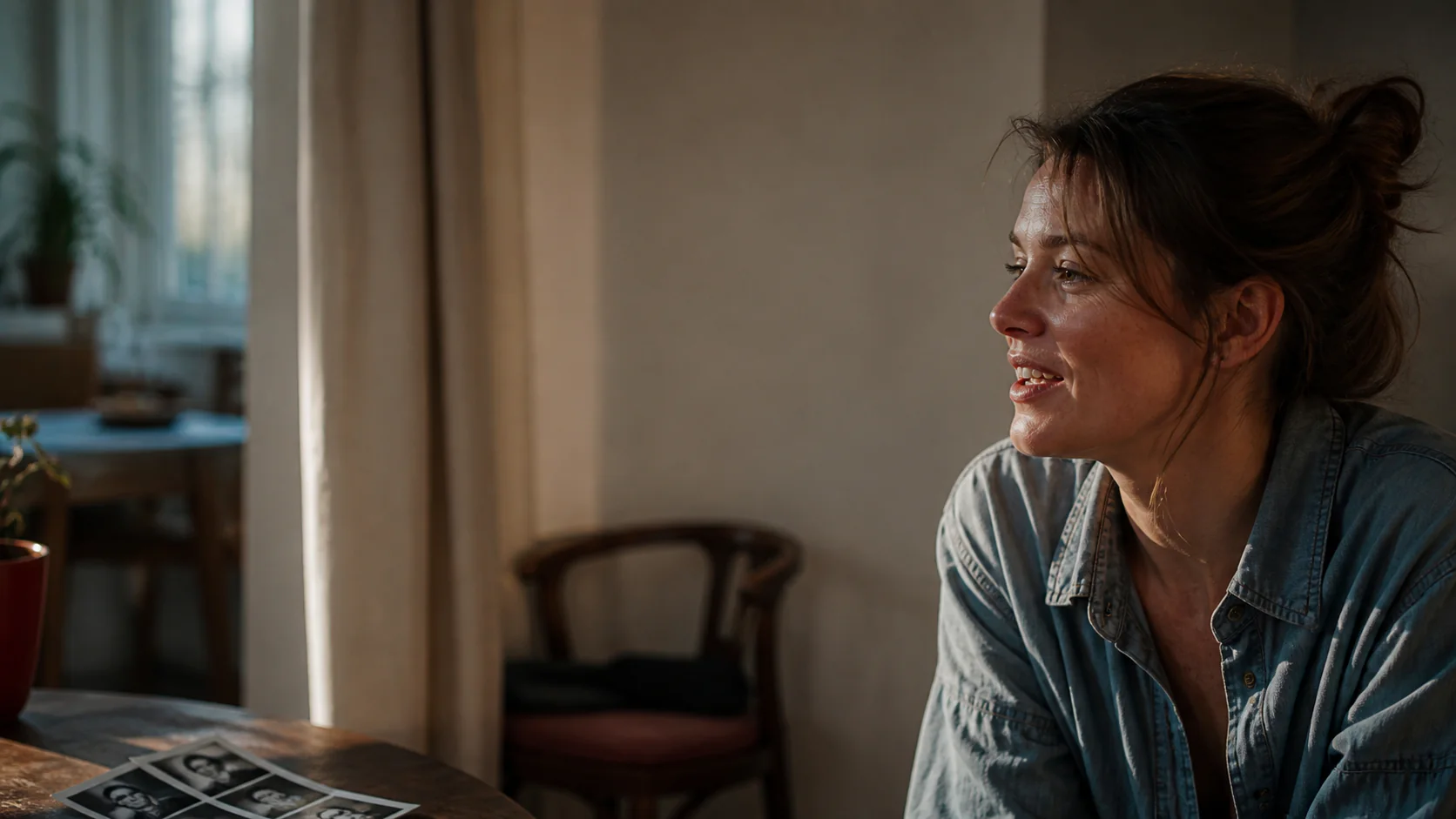
AI Talking Photo Generator
Upload a photo, type text or add audio, and turn the image into a talking video. Make pictures talk with AI voice and natural lip sync online.
Open toolCreate your AI lip-sync video
Upload an existing video and replacement audio, or switch to photo mode when your source is a still image.