
Comic to Video AI
Animate Your Comic Panels
Motion presets
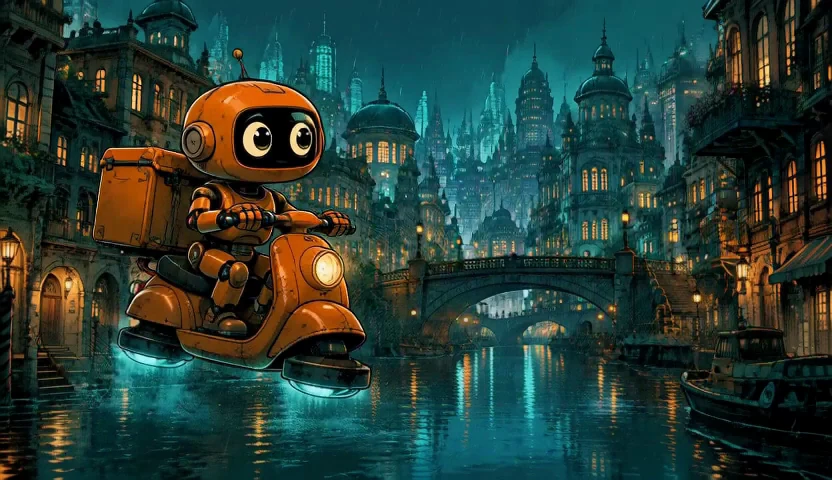
Make the next chapter feel closer
Comic to Video AI starts with the artwork you already love. Choose an expressive reaction, a dramatic reveal, or a richly drawn setting, then describe the movement that carries the moment. Build an animated introduction to your story and invite viewers to discover the pages behind it.
Comic to Video AI for your creative ideas
Explore the details, movement, and creative possibilities in your starting image.
Animate comic panels with a story to tell
Give a still panel an expressive beat: a glance toward danger, a cape caught in the wind, or a slow reveal of something just outside the frame. Comic to Video AI turns your panel and direction into a moving take, helping you choose the moment that makes readers want to know what happens next.

Explore manga to video AI
Make black-and-white scenes feel alive through small reactions, deliberate framing, and atmospheric movement. Describe the ink lines, screentones, and emotion you want to carry into the clip. A thoughtful pause or subtle turn can give a manga character a stronger introduction while keeping the scene rooted in your artwork.
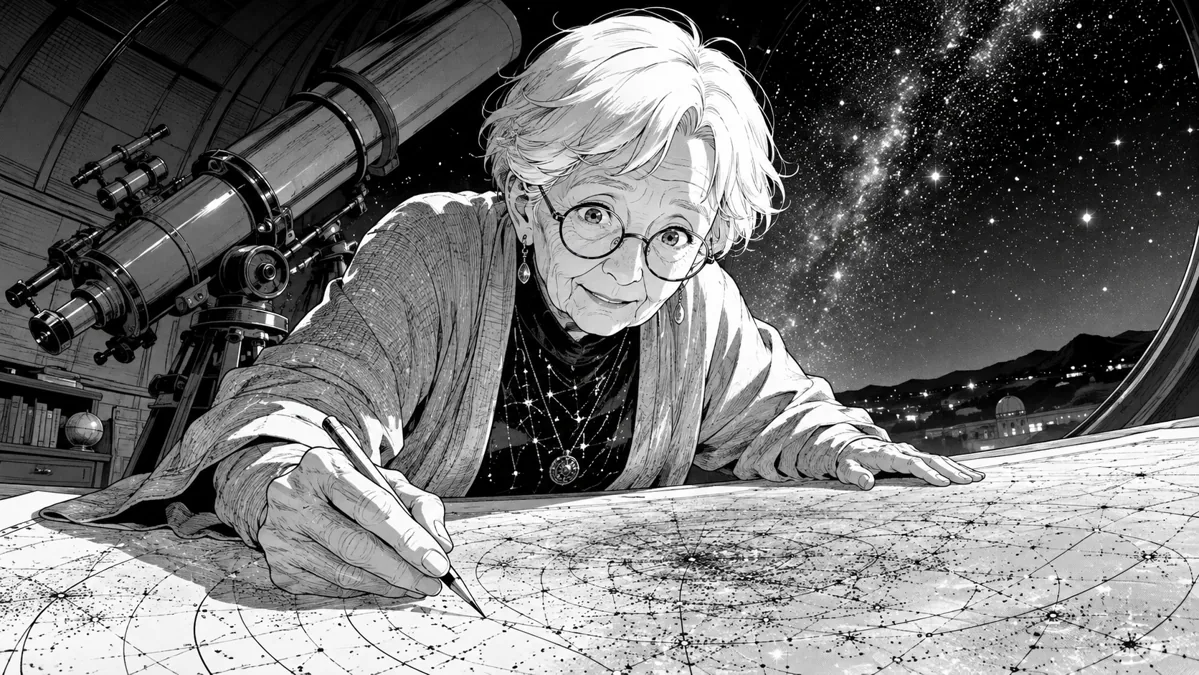
Bring webtoon highlights to new audiences
Give a standout webtoon scene a moving introduction for your next post. Choose a relationship moment, magical discovery, or episode reveal that makes sense at a glance. Build the animation around that one visual beat, then pair the finished clip with an invitation to read the chapter.

Let readers step into your illustrated world
A city skyline, quiet street, or fantasy landscape can tell a story before a character speaks. Use Comic to Video AI to explore drifting rain, moving light, or a camera reveal through the setting. These atmospheric clips give a comic launch a sense of place and help establish the tone of the adventure.

Give original characters a memorable entrance
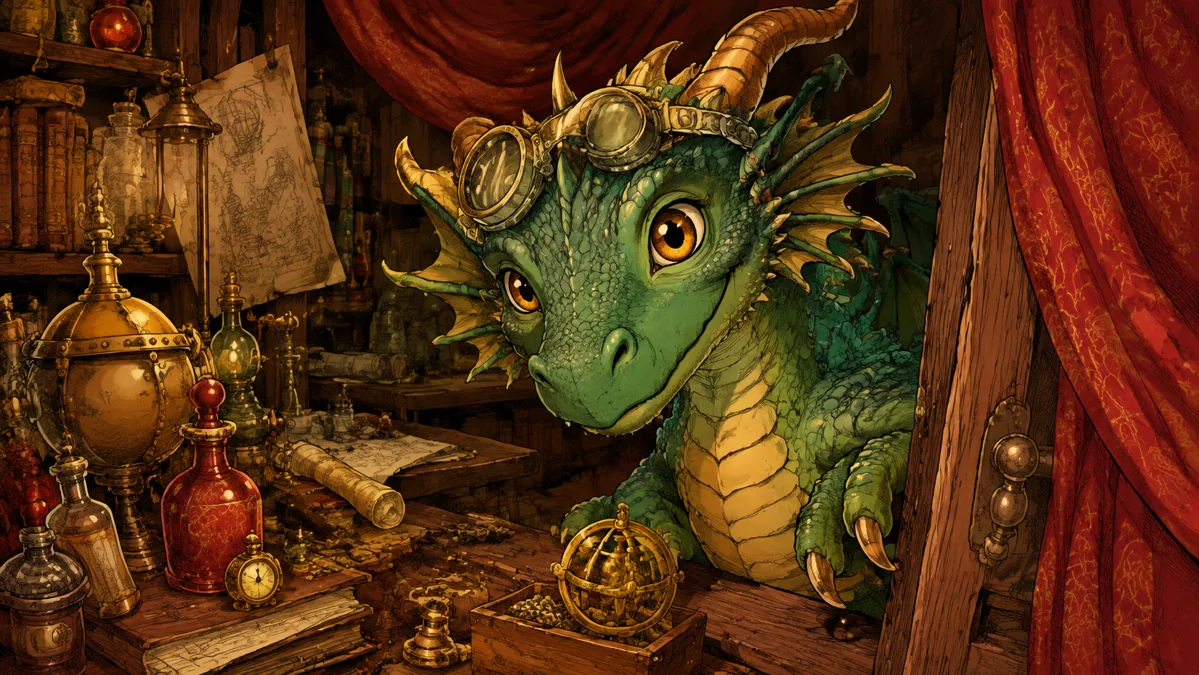
Introduce a hero, creature, or supporting character through a small action that expresses their personality. A curious glance feels different from a confident smile or startled reaction. Turn your character artwork into a moving introduction that you can use alongside creator notes, character profiles, and new-release announcements.
How to use Comic to Video AI
Start with a visual. Give it direction. See the idea move.
Choose your story moment
Upload the panel you want readers to notice first. A clear focal character or setting gives your animated teaser a strong starting point.
Direct the panel
Describe who moves, what changes, and how the camera follows. Add the visual qualities you want to carry forward, such as bold outlines or soft painted shading.
Generate and share
Preview your clip, refine the direction, and download your favorite take. Add your chapter title or release message in your usual editor before sharing.
Where Comic to Video AI fits your work
Find the approach that matches what you want to create and share.
Independent comic launches
Create a moving first impression for a new series or book release. Pair a selected panel animation with your cover, story premise, and release announcement to give potential readers a glimpse of the world inside.
Manga and webtoon updates
Keep readers connected between chapters with an animated reaction, setting reveal, or character moment. Choose scenes that build anticipation and point people toward the next installment.
Character showcases and creator portfolios
Show how your illustrated cast expresses emotion and personality. Use a moving character study alongside finished panels and concept art to give collaborators and readers a fuller introduction to your work.
Why choose Comic to Video AI on Motion Control AI?
A direct path from your visual idea to a moving take you can use.
Begin with the panels you already have
Your existing comic becomes the starting point for motion. Develop an animated teaser from an expressive panel, so the story, composition, and character design remain central to your creative direction.
Direct the story beat in plain language
Describe the action and camera move you imagine. You can explore a quiet reaction, an atmospheric reveal, or a stronger character entrance and refine the direction around the story you want to tell.
Find the take that fits your release
Review the animation, adjust the movement, and download your selected take. Build it into the teaser, social post, or launch announcement you are already planning for your comic.
Your questions, answered
How do I turn a comic into a video?
How can I animate comic panels from a full page?
What should I write to keep the comic feeling?
How do I use speech bubbles in an animated comic?
Can I use this for a comic book launch?
Give your next panel a moving debut
Open Comic to Video AI, choose a moment worth sharing, and direct your first animated teaser.