
Frames to Video AI
Choose the ending. Let AI build the journey.
Transition presets
First frame
Last frame
What Is Frames to Video AI?
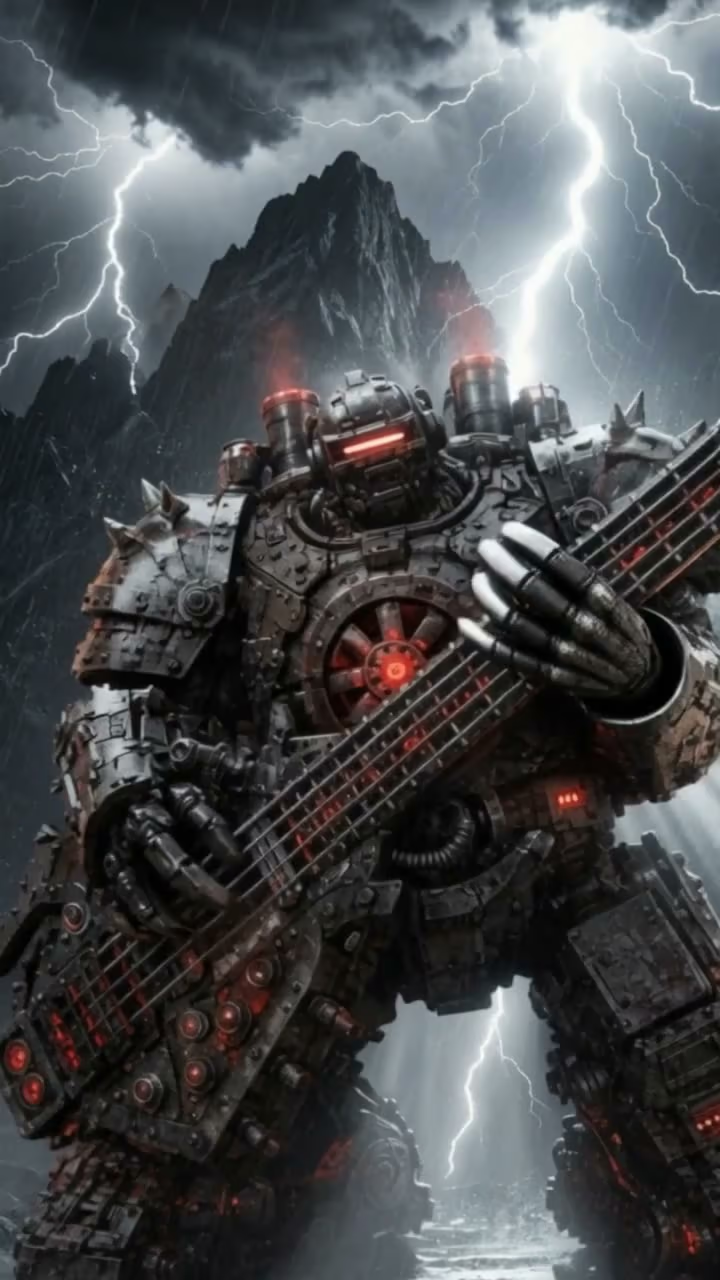
Frames to Video AI is a guided video workflow built around two visual anchors. The first frame defines where the shot begins; the final frame defines where it should land. Frames to Video then generates subject motion, camera travel, and scene changes between those endpoints instead of placing still images on a timeline.
Use this workflow when the final reveal matters as much as the opening. It can guide a product into its hero angle, complete a character turn, move from a wide shot to a close-up, or shift day into night. Frames to Video AI keeps the creative brief visible at both ends of the clip.
More Control with Frames to Video
Frames to Video AI combines two approved frames, a focused motion prompt, and a model suited to the shot.
Frames to Video Start and End Control
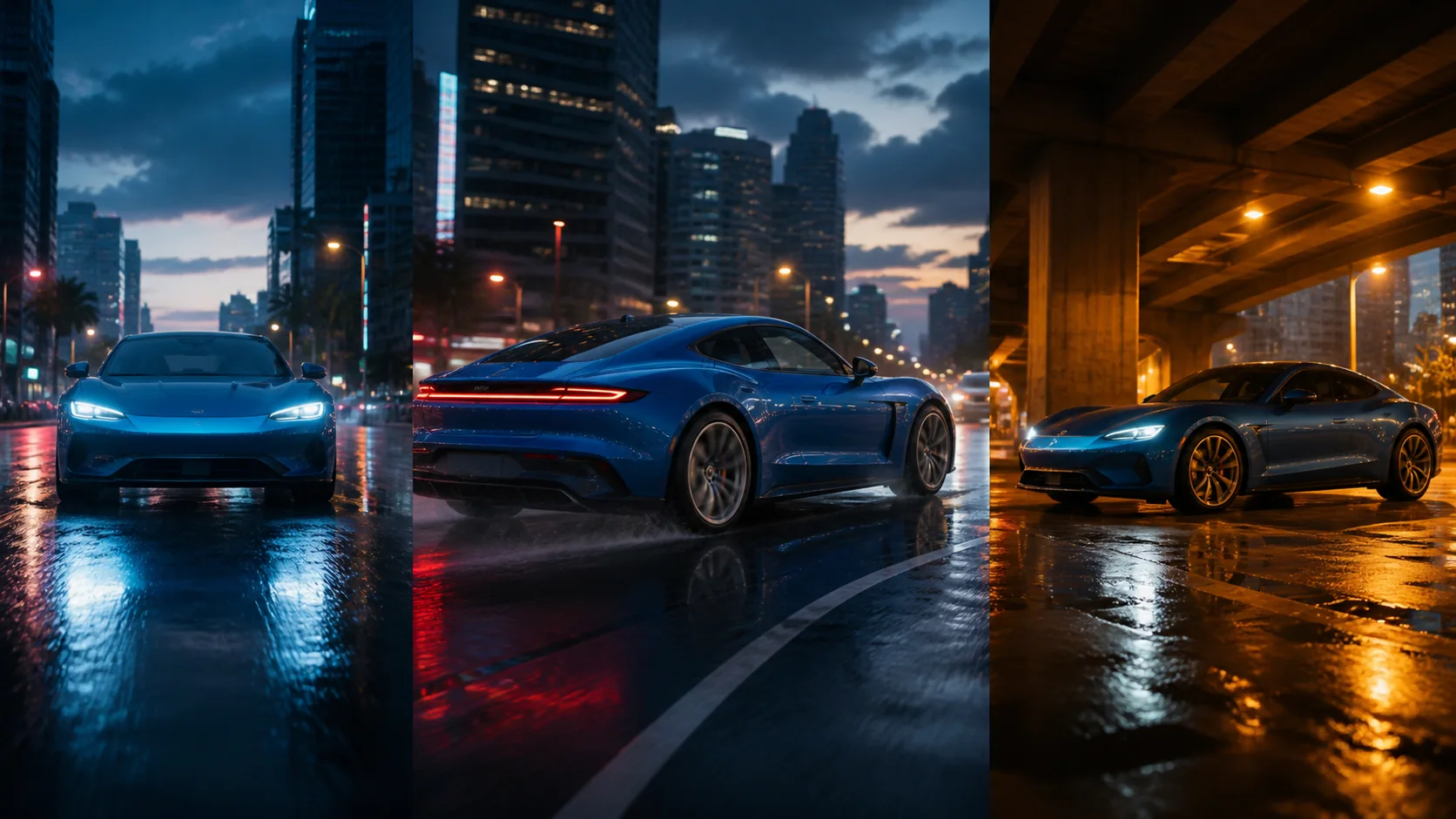
The workflow begins with the exact opening composition and aims for your chosen final composition. Two visual anchors make the intended payoff easier to direct.
Frames to Video Motion Guidance
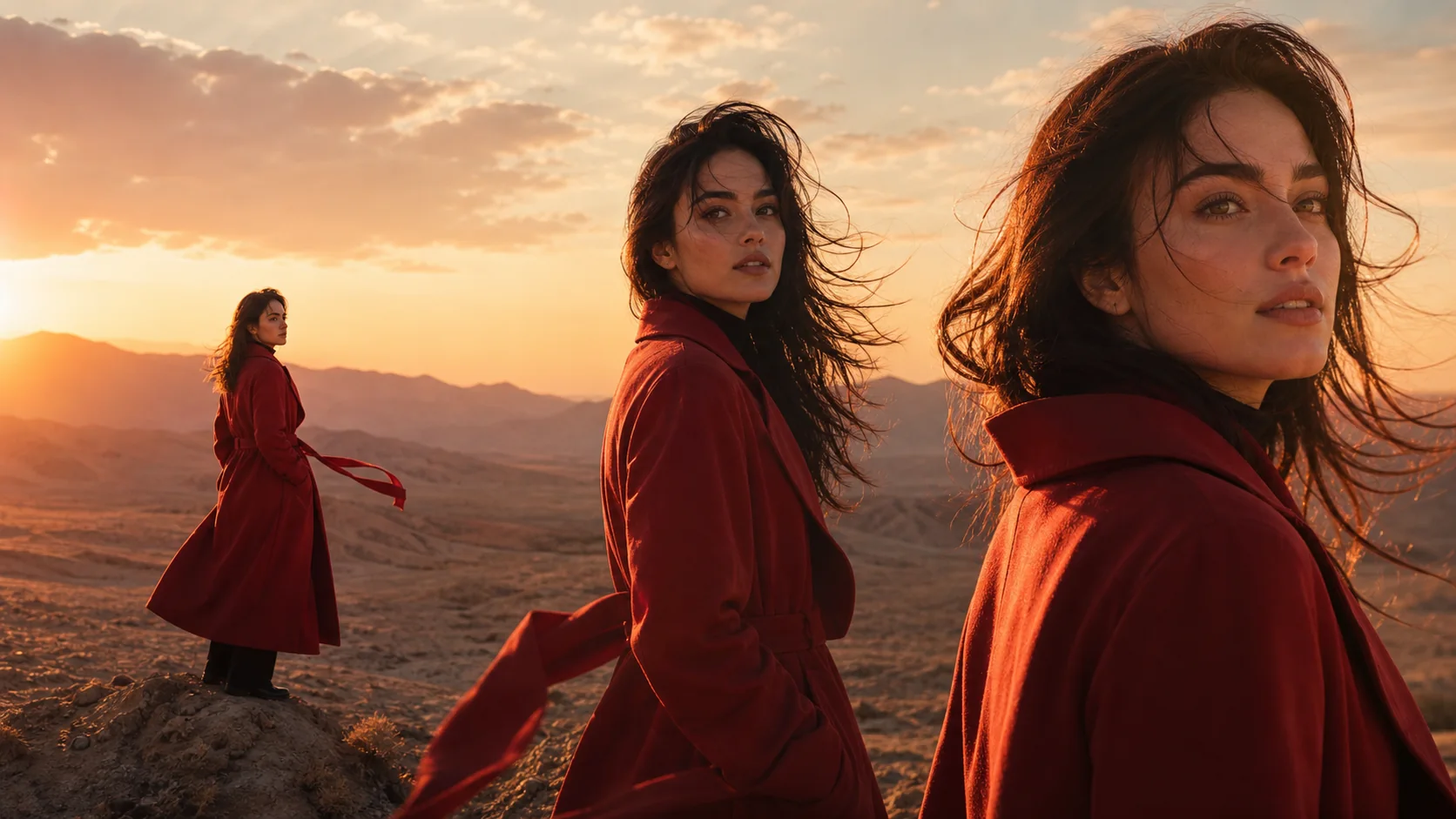
Tell Frames to Video AI what moves, how the camera travels, and how the mood changes. Your images carry the appearance while the prompt shapes the route.
Frames to Video Model Choice
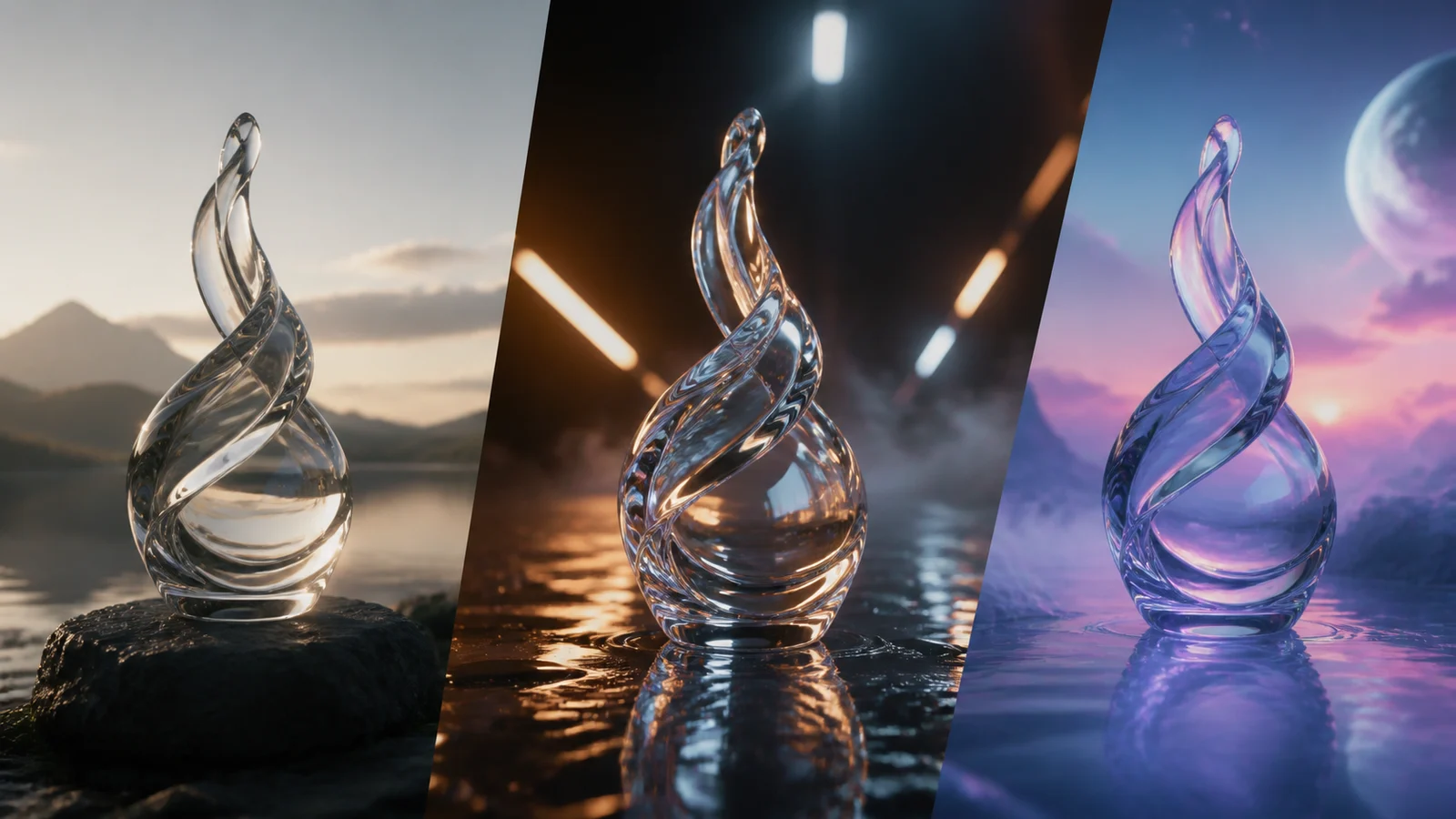
Run the same project with models suited to fast drafts, cinematic movement, or polished output. Compare engines without rebuilding it in another tool.
Frames to Video Clean Export
Review Frames to Video AI results in the browser and download watermark-free clips for concepts, social edits, storyboards, pitches, and campaigns.
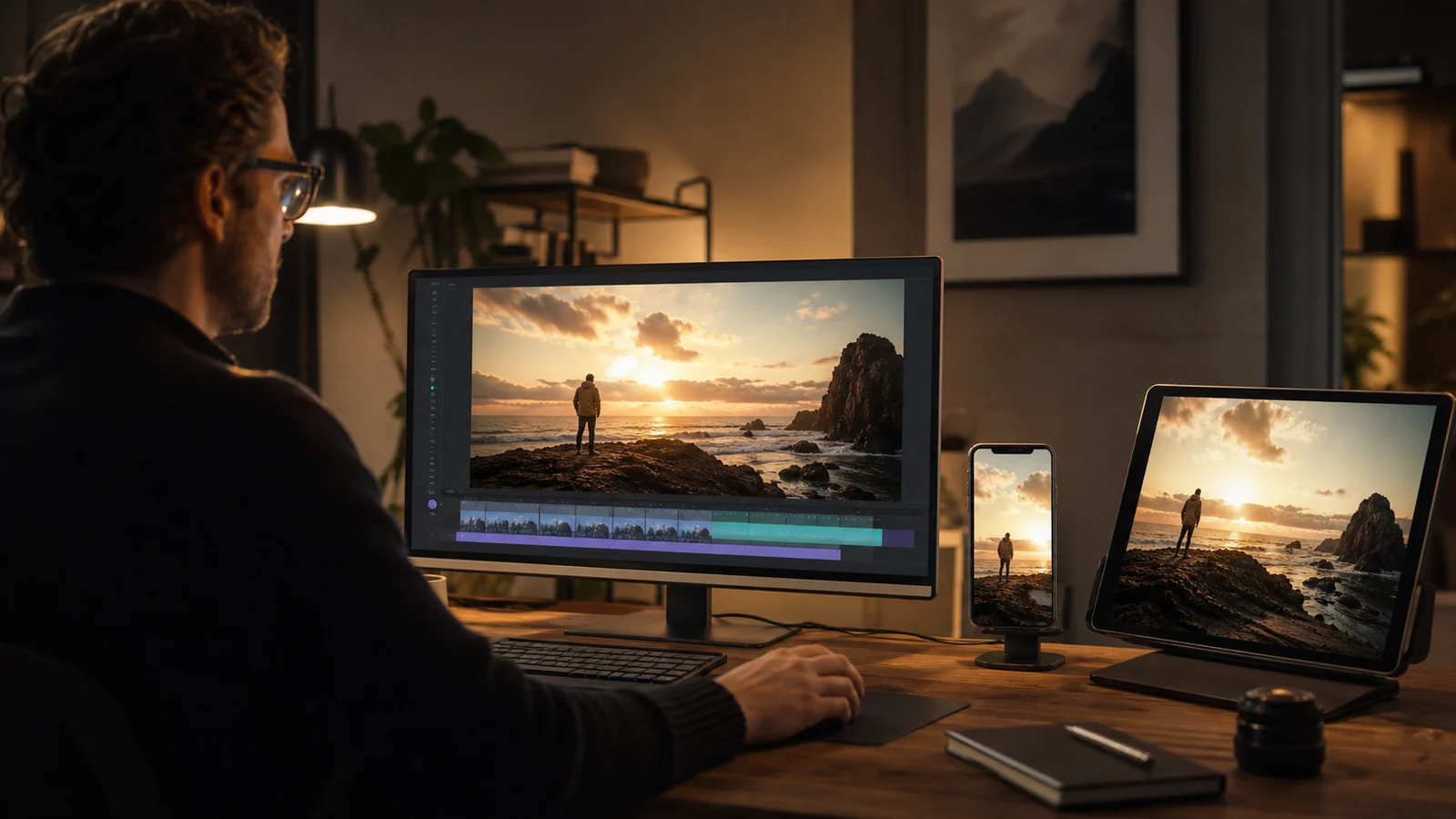
How Frames to Video Works
Frames to Video AI needs only two compatible frames and an optional transition brief.
1. Upload Two Frames
Give Frames to Video a clear first image and final image. Similar subjects, aspect ratios, and scene geometry help the model find a believable path.
2. Direct the Transition
Guide Frames to Video AI with one main action and one camera move, such as a slow dolly forward while the subject turns toward camera.
3. Generate and Refine
Choose a Frames to Video model, generate the clip, and compare the result. Simplify the action or test another engine when the route feels abrupt.
Choose a Frames to Video AI Model
Different Frames to Video models emphasize speed, cinematic motion, or prompt response. Pick the engine that fits the shot.

Veo 3.1 Fast
The default Frames to Video AI choice for fast, polished generation and responsive motion direction.
- Fast Frames to Video drafts
- Strong prompt response
- Cinematic visual quality

Kling 3.0
Choose Kling for Frames to Video shots that need expressive subject motion, camera direction, and cinematic transitions.
- First and final frame support
- Camera and motion prompts
- Polished hero shots

Seedance
Use Seedance for Frames to Video AI iterations that balance speed, quality, and prompt responsiveness.
- Practical creative testing
- Flexible quality options
- Model-specific controls
Why Make Frames to Video Here?
Frames to Video AI gives you endpoint direction, useful model choice, and a short path to a downloadable clip.
Two-Endpoint Direction
Frames to Video lets you define both the opening and ending instead of hoping a one-image animation lands on the right shot.
Multiple Video Engines
Frames to Video AI supports models with different strengths in speed, motion, camera behavior, and quality.
Prompt-Optional Workflow
Frames to Video can follow the two images alone or use a short prompt for action, timing, camera direction, and mood.
Clean Project Outputs
Frames to Video AI keeps results in your history and provides watermark-free downloads for easier review and handoff.
Who Uses Frames to Video AI?
Frames to Video serves creators whose brief includes a planned final pose, reveal, composition, or environment.
Frames to Video for Product Marketing
Product teams use Frames to Video AI to move from an opening detail to an approved packshot, hero angle, or end card.
Frames to Video for Filmmakers
Filmmakers use Frames to Video to previsualize a camera move or scene beat between two designed keyframes before production.
Frames to Video for Social Creators
Social teams use Frames to Video AI for transformations, outfit changes, location shifts, and concise reveals with a clear payoff.
Frames to Video for Concept Teams
Game and concept teams use Frames to Video to explore how a character, vehicle, interface, or environment changes between approved designs.
Frames to Video for Agencies
Agencies use Frames to Video AI to turn client-approved start and end boards into motion concepts that are easier to review.
Frames to Video AI FAQ
What does Frames to Video mean?
How is Frames to Video different from image to video?
Do Frames to Video inputs need to match?
Does Frames to Video require a prompt?
Which Frames to Video AI model should I choose?
Can Frames to Video perfectly preserve a face or product?
Create Frames to Video AI from Two Keyframes
Give Frames to Video the shot you have and the ending you want, then generate the motion between them.