
AI Avatar for Course Creators
Update the Lesson Without Refilming the Instructor.
Use one authorized instructor portrait with a sharp face, visible mouth, direct eye line, and course-ready framing.
Keep each clip focused, fact-check the lesson, and write in clear spoken sentences.

What does AI Avatar for Course Creators produce?
AI Avatar for Course Creators turns one approved instructor image and a written lesson script or uploaded recording into a speaking instructor video. Reuse the same familiar face for course welcomes, module openings, concise teaching segments, corrections, learner reminders, and sales-page teasers. When a small part of the course changes, you can update the wording without arranging another camera, lighting, and teleprompter session.
AI Avatar for Course Creators is not an automatic course builder. It does not read a PDF or presentation, create a curriculum, design slides, record a software screen, generate quizzes, add chapters, package SCORM files, or publish directly to an LMS. It creates the instructor take. Combine that MP4 with your slides, demonstrations, screen recordings, captions, transcripts, and accessibility materials in the course-production tools you already use.
AI Avatar for Course Creators features
Create focused instructor clips that can be reused across a course library while keeping lesson content under your control.
Create an AI instructor avatar from one photo
AI Avatar for Course Creators begins with one clear, permitted instructor portrait. Turn a teacher photo into an AI instructor avatar with a recognizable presence for online courses, coaching programs, and membership content.

Turn a lesson script into a talking teacher video
Type the exact lesson wording into AI Avatar for Course Creators and choose a listed voice and language. Create a talking teacher video for one focused explanation without asking the model to invent curriculum or lesson facts.

Use the instructor's own recorded voice
Upload clean, authorized teaching audio when personal cadence, specialist pronunciation, or a familiar instructor voice matters. AI Avatar for Course Creators synchronizes the supplied portrait to that recording.
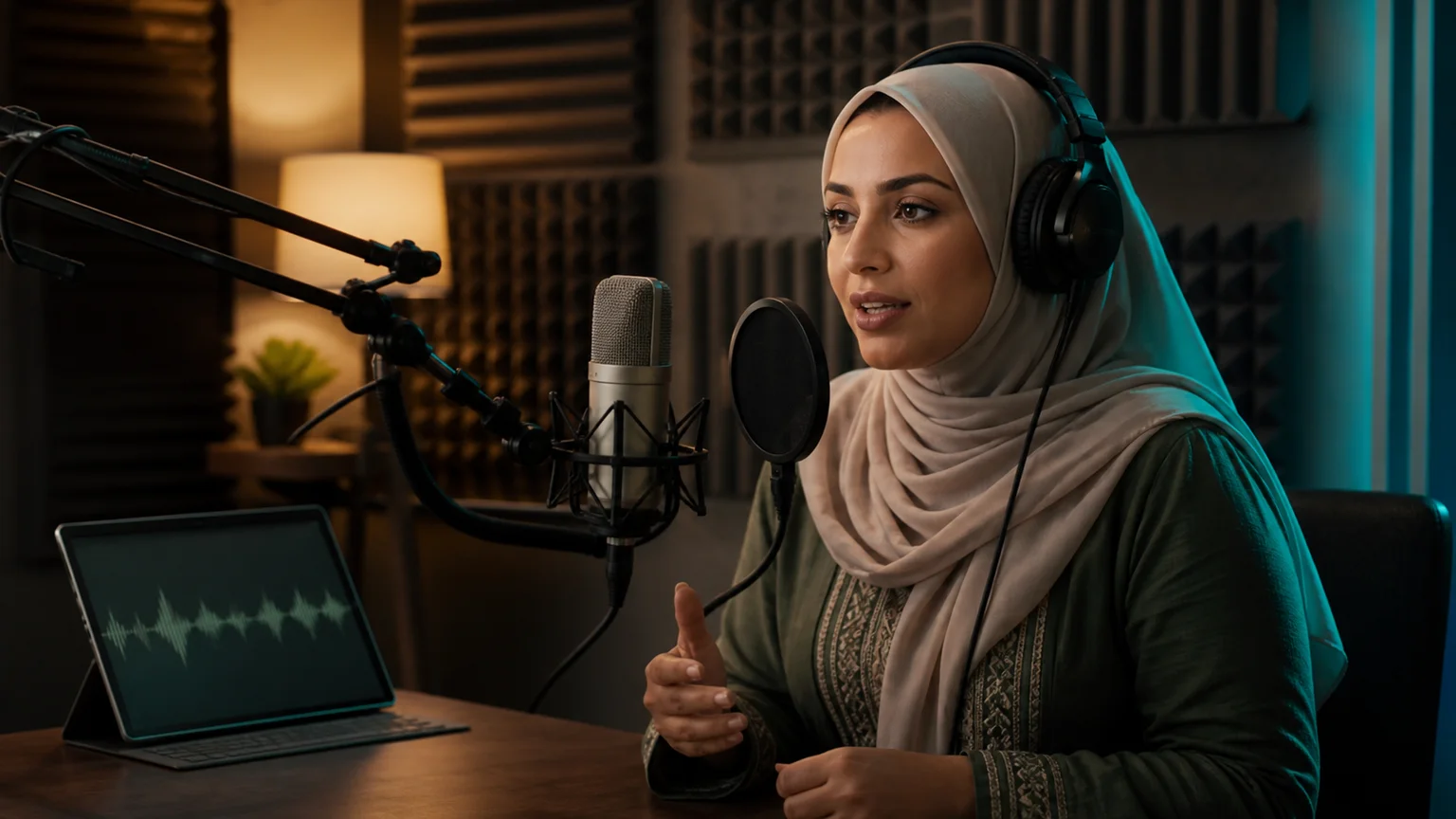
Create course welcomes and module intro videos
Use AI Avatar for Course Creators as a course intro video generator for welcomes, module openings, lesson summaries, learner reminders, and concise transitions between slides or demonstrations.
Update course videos without filming again
Reuse the same approved instructor photo for revised introductions, changed dates, resource announcements, and corrected explanations. AI Avatar for Course Creators reduces the visual mismatch caused by filming small updates months apart.
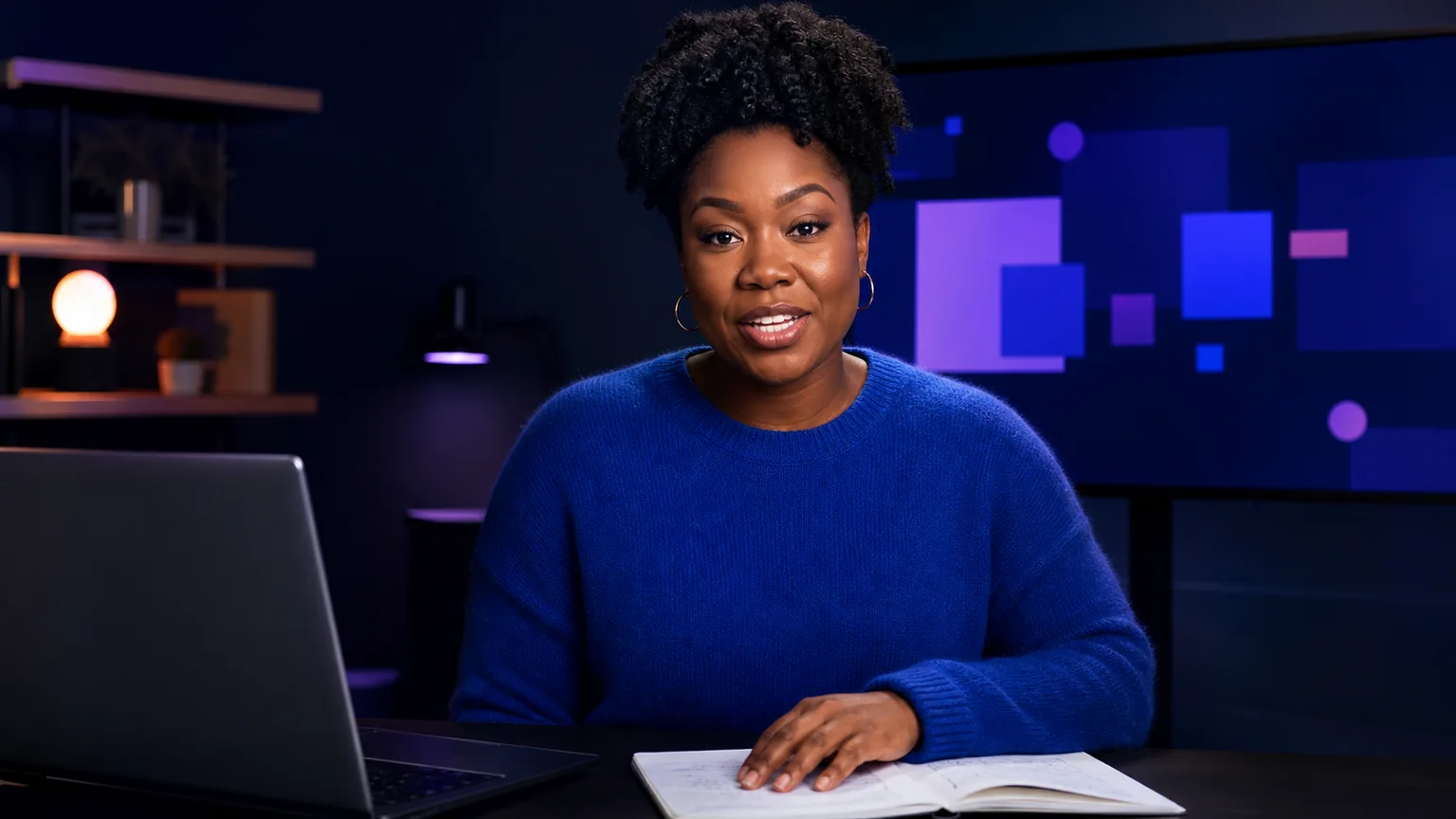
How to use AI Avatar for Course Creators
Create one concise, reviewable instructor clip at a time, then place it inside the larger lesson or course workflow.
Upload an instructor photo
Choose one well-lit portrait with visible eyes and lips. Use your own image, a permitted instructor portrait, or an original education avatar that you are authorized to animate.
Add the lesson script or voice audio
Write one learning outcome and one focused explanation, or upload a clean instructor recording. Fact-check terminology, names, pronunciations, links, and learner instructions.
Generate and place the clip in your course
Choose 720p or 1080p, generate with AI Avatar for Course Creators, review the teaching take, and add it to your lesson editor with captions, slides, examples, and supporting material.
AI Avatar for Course Creators use cases
Use a course avatar where a visible instructor improves orientation, trust, continuity, or clarity.
Course welcomes and module intros
Use AI Avatar for Course Creators to open a course or module with a familiar face, a clear learning outcome, and one practical instruction for learners.
Lesson updates and corrections
Replace outdated wording or add a correction without matching the lighting, clothing, and camera setup of the original recording session.
Software tutorial introductions
Use AI Avatar for Course Creators to introduce a software lesson or updated workflow, then hand off to a current screen recording that demonstrates the interface step by step.
Coaching and membership updates
Create concise presenter clips for coaching programs, cohort courses, membership communities, live-session reminders, resource releases, and schedule changes.
Course teasers and enrollment reminders
Create a concise instructor-led preview for a course page, email, or social post, then format the downloaded video for the final channel.
Why choose AI Avatar for Course Creators?
Keep the instructor visible for the moments that benefit from a human presence while your slides, demonstrations, exercises, and resources carry the detailed teaching.
Update a short clip without a reshoot
Edit the script and generate a replacement when a module introduction, correction, date, link, or learner instruction changes.
Keep a familiar teaching presence
AI Avatar for Course Creators can reuse one authorized instructor image across a series, helping separate modules feel visually connected.
Control every teaching line
Enter the exact reviewed script rather than allowing the tool to invent lesson facts, examples, claims, or learning outcomes.
Prepare audience-specific versions
Write and review a separate version for each language or learner group, then choose from the voices and languages currently available in the form.
Download a standard video file
Generate a 720p or 1080p MP4 that can move into your lesson editor, course page, email workflow, or social publishing process.
Build review into the workflow
Check factual accuracy, pronunciation, accessibility, identity consent, learner suitability, and disclosure before a generated instructor clip reaches students.
AI Avatar for Course Creators FAQ
What is AI Avatar for Course Creators?
Does AI Avatar for Course Creators generate an entire online course?
Can I create an AI instructor avatar from my own photo?
Can I use my own teaching voice?
Can I reuse the same instructor for multiple modules?
What course clips work best with an instructor avatar?
Does the generated course video include captions or slides?
Can I make course videos in different languages?
Can I use AI instructor videos in a paid course?
What photo works best for AI Avatar for Course Creators?
Should learners be told that the instructor clip uses AI?
More tools in AI Talking Avatar Generator
Compare other focused workflows in the same AI Talking Avatar Generator collection.
View AI Talking Avatar Generator
AI Spokesperson Video Generator
Turn an approved portrait and reviewed business script or audio into a lip-synced presenter video for introductions, welcomes, and updates.
Open tool
AI UGC Avatar Generator
AI UGC Avatar Generator turns one creator photo and an ad script or voice recording into a lip-synced UGC-style video for TikTok, Reels, and Meta ads.
Open tool
AI Recruitment Video Generator
AI Recruitment Video Generator turns an authorized recruiter photo and approved job script or voice recording into hiring videos for career pages and recruiting posts.
Open tool
AI Avatar for Real Estate Agents
Create an AI avatar for real estate agents from one headshot and script. Make market updates, introductions, listing announcements, open-house invites, and FAQ videos.
Open toolCreate a reusable instructor clip
Open AI Avatar for Course Creators with one approved instructor portrait and one fact-checked lesson script.