LogoMotion Control AI
  • Motion Control AI
    • Text to Video
    • Image to Video
    • Reference to Video
    • Video to Video
    • Frames to Video
    • Lip Sync
    • Video Edit
    • Motion Control
    • Kling 2.6
    • Kling3.0
    • Kling O3
    • Grok Imagine
    • Gemini Omni
    • Seedance 1.5 Pro
    • Seedance 2.0
    • Seedance 2.0 Fast
    • Seedance 2.0 Mini
    • HappyHorse 1.0
    • HappyHorse 1.1
    • PixVerse V6
    • MiniMax H3
    • LTX-2.3 Fast
    • LTX-2.3 Pro
    • Veo 3.1 Lite
    • Veo 3.1 Fast
    • Veo 3.1 Quality
    • Text to Image
    • Image to Image
    • Nano Banana
    • Nano Banana Pro
    • Nano Banana 2
    • Nano Banana 2 Lite
    • GPT Image 2
    • Z-Image Turbo
  • Pricing
  • Blog
New user bonus

20 Free Credits

Then 5 credits per check-in for 3 days

Sign up free
LogoMotion Control AI

AI Video Editor

Upload a clip, describe the visual change, and add optional references. AI Video Editor generates a new version without manual masks, rotoscoping, or keyframes.
Preparing the video generator…

What AI Video Editor Can Change

AI Video Editor focuses on generative visual transformation: keep useful source motion and timing while asking the model to rebuild selected parts of the frame.

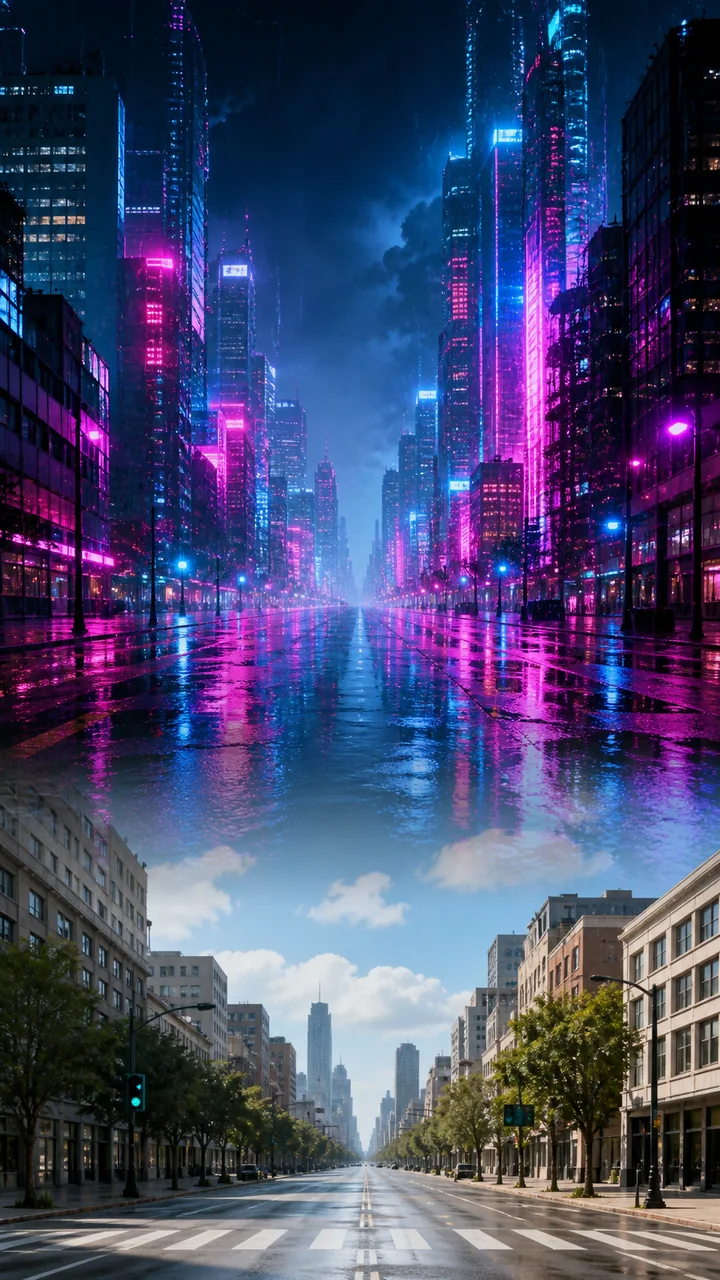
Change a Scene With Plain Language

Tell AI Video Editor which environment, object, product, character detail, wardrobe element, or visual treatment should change. The source clip gives the generation its starting motion, composition, timing, and scene structure.
Change a Scene With Plain Language

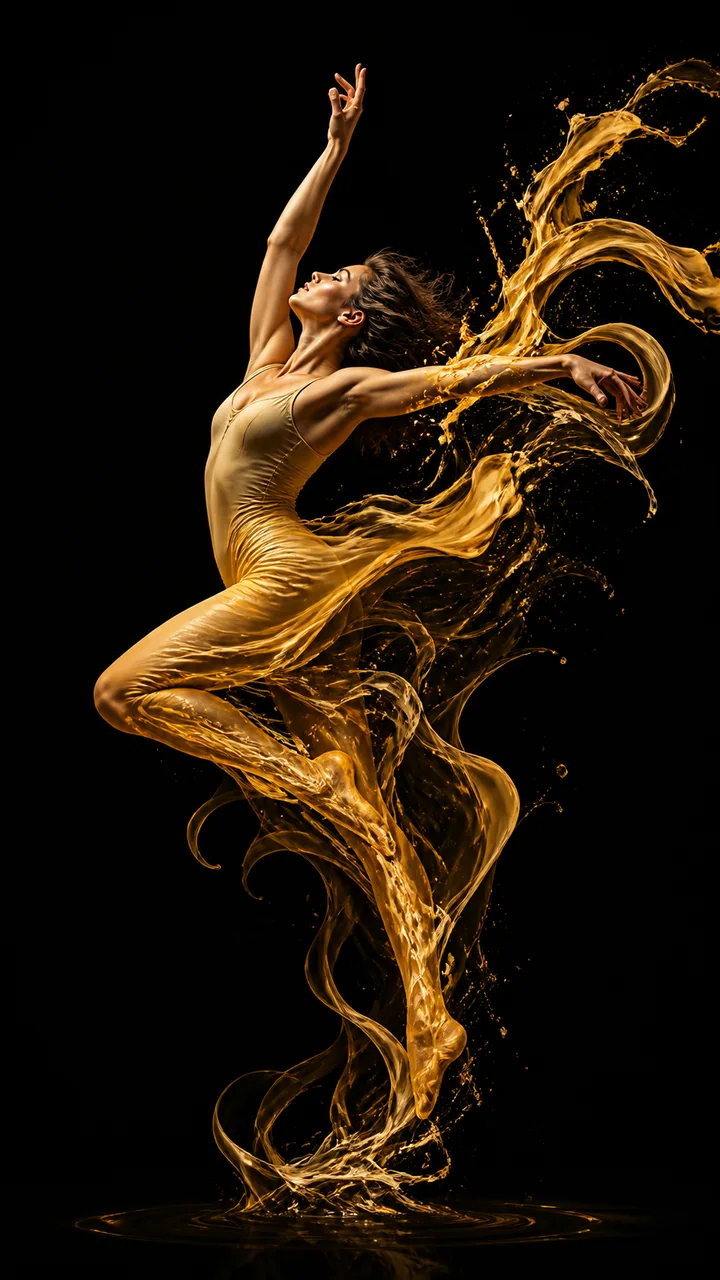
Preserve Source Motion and Timing

Use AI Video Editor when the original performance or camera movement is already valuable. Supported editing models preserve the source duration, and model-specific controls determine how aspect ratio, resolution, and other output details follow the uploaded clip.
Preserve Source Motion and Timing

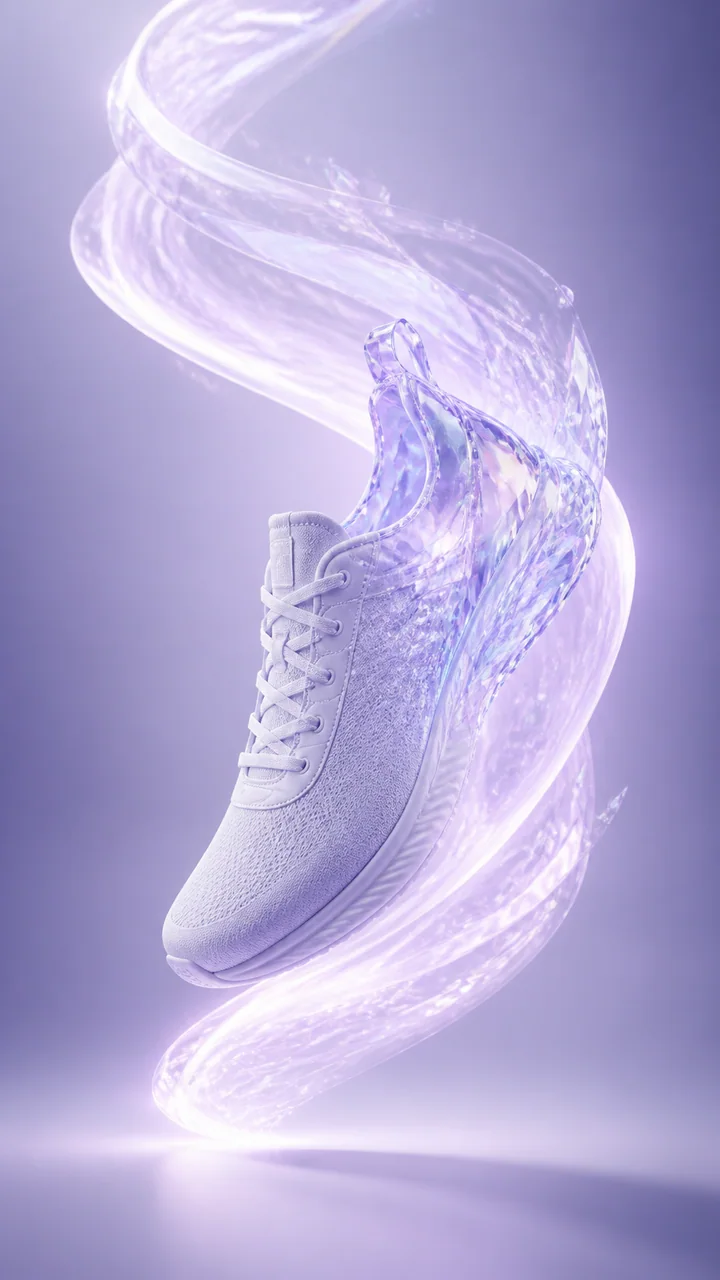
Guide Edits With Reference Images

Add visual references when words cannot accurately describe a product, character, outfit, prop, or style. AI Video Editor supports up to four images with Kling O3 and up to five edit references with HappyHorse in their current workflows.
Guide Edits With Reference Images

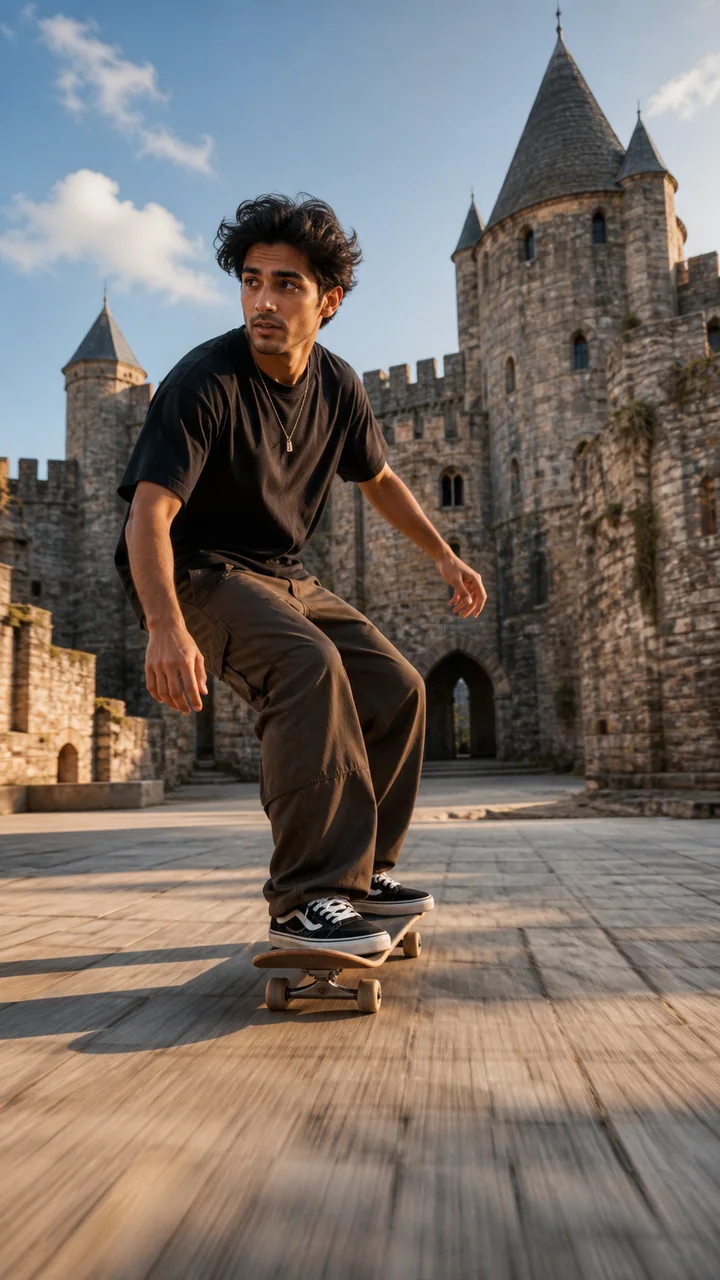
Restyle Complete Video Scenes

Use AI Video Editor to explore cinematic, illustrated, animated, retro, futuristic, or campaign-specific treatments while asking the model to keep key source motion and composition. It is a generative restyle, not a simple color preset.
Restyle Complete Video Scenes

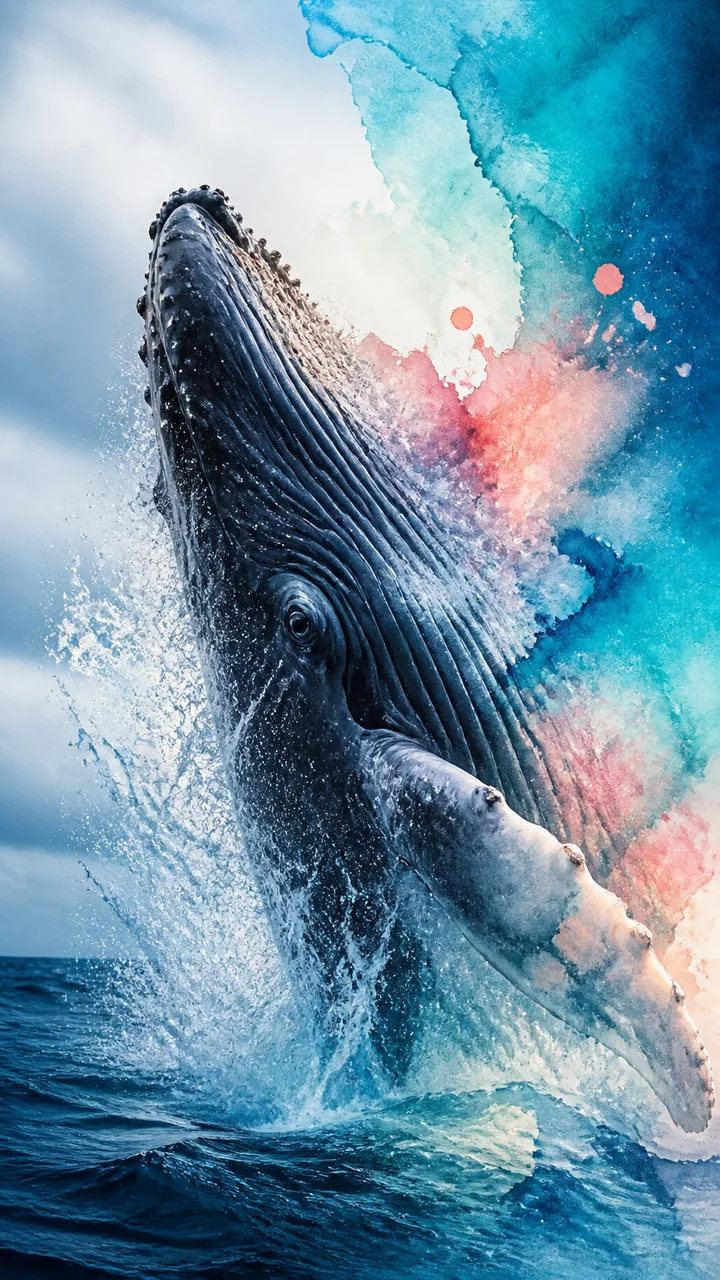
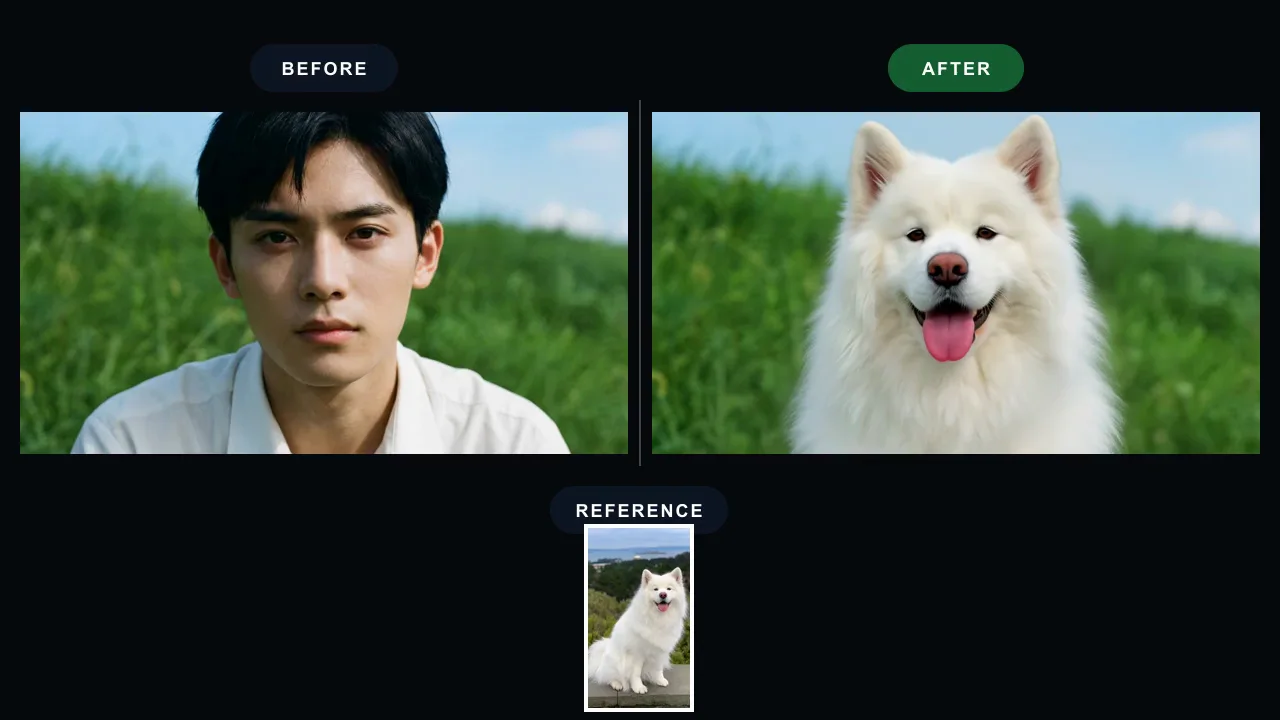
Replace Visual Elements Without Masks

Prompt AI Video Editor to replace a product, environment, visible character treatment, costume, or scene detail without drawing masks frame by frame. Clear prompts still need to state what should remain untouched.
Replace Visual Elements Without Masks

Choose the Editing Model

AI Video Editor provides more than one generative editing engine. Compare the live reference limits, output quality, audio behavior, source constraints, and credit estimate rather than sending every editing brief into one black box.

Choose the Editing Model

How to Use AI Video Editor

AI Video Editor works best when the uploaded clip already contains the motion you want and the prompt clearly separates change from preservation.

1

Upload the Source Clip

Choose a video with readable movement, stable subjects, and the timing you want to retain. AI Video Editor uses this clip as the structural guide, so a cleaner source usually produces a more controllable transformation.

2

Describe Change and Preservation

Write the edit as change X, keep Y, preserve Z. Tell AI Video Editor what to replace or restyle, then name the character, motion, camera, background, lighting, timing, or composition that must stay.

3

Add References and Generate

Upload optional product, character, outfit, or style images, select the model, and review the visible settings. AI Video Editor then generates a new clip for preview, refinement, and download.

What Is This AI Video Editor?

AI Video Editor is a prompt-based generative editing tool. You upload an existing video, describe a visual transformation, optionally add reference images, and generate a new version that follows the source clip. It is designed for changes that would otherwise require masking, tracking, compositing, or a new shoot.

AI Video Editor is not currently a full nonlinear editor for trimming, splitting, transcript editing, automatic subtitles, audio cleanup, or timeline assembly. Use it for generative scene changes and visual replacements; use a traditional timeline editor when the job is primarily cutting, captions, sound mixing, or final delivery assembly.

Choose an AI Video Editor Model

Choose by reference capacity, resolution, and audio handling.

Up to 4 references
Kling logo

Kling O3

Prompt-led changes that continue to follow the source clip.

  • Source video + prompt
  • Up to 4 reference images
Up to 5 references
HappyHorse logo

HappyHorse

More edit references, two resolutions, and audio control.

  • Up to 5 edit references
  • 720p or 1080p

Who Uses AI Video Editor?

AI Video Editor is aimed at creators who want to change the visual content of a clip, not merely trim its beginning or add captions.

Advertising Creative Variations

Marketing teams use AI Video Editor to test new environments, product treatments, seasonal looks, and campaign styles from one source performance.

Filmmaking and Previsualization

Directors use AI Video Editor to explore alternate worlds, wardrobe, props, lighting, and production design while retaining useful blocking and camera motion.

Product and Ecommerce Teams

Teams use AI Video Editor with product references to place an approved item into an existing motion concept or campaign setup.

Social and Creator Experiments

Creators use AI Video Editor for transformations, character treatments, visual trends, surreal edits, and short-form style variations.

Animation and Game Concepts

Artists use AI Video Editor to translate live-action motion into stylized characters, worlds, cutscene ideas, and concept animation.

Why Choose Our AI Video Editor?

Our AI Video Editor is explicit about what it does: source-led generative transformation with prompt and reference control, shown directly on the marketing page.

Edit With a Written Direction

AI Video Editor turns a plain-language change request into a generative edit without requiring manual masks or keyframes.

Prompt Plus Visual References

Use reference images with AI Video Editor when a specific product, character, costume, prop, or style must be visually anchored.

Choose the Editing Engine

Switch between supported AI Video Editor models instead of depending on one hidden transformation pipeline for every brief.

Clear Limits and Credits

AI Video Editor shows model-specific source rules, references, output settings, and the estimated credit cost before generation.

AI Video Editor FAQ

Can AI Video Editor edit an existing video?+
Yes. Upload an existing clip, describe the visual change, and add optional reference images. AI Video Editor generates a transformed version that follows the source motion and timing. It does not overwrite your original upload.
Is AI Video Editor free online?+
You can open AI Video Editor, inspect the workflow, and prepare an edit online. Generating a transformed video consumes credits based on the model and settings. Review the live estimate and current account benefits before submission rather than assuming unlimited free exports.
Can I use AI Video Editor with no sign up?+
You can review AI Video Editor and prepare the source, prompt, references, and settings without signing in. An account is required to generate, manage credits, and save creation history, so this is not advertised as an AI Video Editor with free unlimited no-sign-up output.
Does AI Video Editor trim clips or add subtitles?+
Not currently. AI Video Editor focuses on generative visual transformation rather than trim, split, transcript editing, subtitles, audio cleanup, or timeline assembly. Use a conventional editor for those finishing tasks and this tool when the pixels or scene itself must change.
Can AI Video Editor remove or replace an object?+
AI Video Editor can be prompted to replace products, props, backgrounds, wardrobe, and other visible elements as part of a full generative transformation. Results depend on source clarity and model behavior; this is not deterministic frame-by-frame inpainting.
Will AI Video Editor keep the original audio?+
Audio behavior depends on the editing model. HappyHorse currently offers original or automatic audio handling, while other model workflows may differ. Check the visible AI Video Editor audio control before generating and verify the result before final delivery.
How do I write an AI Video Editor prompt?+
Use the pattern change X, keep Y, preserve Z. For example: change the studio into a rainy city, keep the same performer, preserve the walk, camera tracking, timing, and composition. Add reference images when the AI Video Editor must match a specific visual target.
Can I use AI Video Editor for social media or YouTube?+
Yes, AI Video Editor can create transformed shots and visual variations for social media, ads, Shorts, and YouTube projects. Final trimming, subtitles, music mixing, and timeline assembly should be completed in a traditional editor when the project requires them.
Can AI Video Editor output be used commercially?+
Commercial use depends on your rights to the source and references, the selected model, account plan, and provider terms. Review the current terms before using AI Video Editor output in paid advertising, client delivery, resale, or a public campaign.

Tools That Work With AI Video Editor

Choose the workflow that matches your starting material and the kind of control you need.

Reference to Video AI

Generate a new scene from several visual references when no source clip needs to be preserved.

Explore this workflow →

Video to Video

Explore broader source-video transformation workflows and models available in the video suite.

Explore this workflow →

Text to Video AI

Begin from a written prompt when you want the model to invent the complete shot.

Explore this workflow →

Keep the Motion. Change the Visuals.

Open AI Video Editor, upload the source clip, write a precise change request, add references when useful, and review the cost before generating.
Try AI Video EditorPricing

About This AI Video Editor

AI Video Editor is an online prompt-based generative editing workflow for changing the visual content of an uploaded video. Use AI Video Editor to replace an environment, restyle a scene, change a product, guide wardrobe, transform a character treatment, or explore alternate production design while following useful source motion and timing. Kling O3 supports one source video with up to four reference images in its current editing workflow; HappyHorse supports up to five edit references with 720p or 1080p and model-specific audio handling. This AI Video Editor does not currently replace a traditional timeline for trimming, splitting, captions, transcript editing, audio cleanup, or final assembly. It is built for the generative changes that normally demand reshooting, masking, tracking, compositing, or frame-by-frame visual work.

LogoMotion Control AI

Email
AI Tools
  • AI VTuber Video Generator
  • AI NPC Dialogue Video Generator
  • AI Game Cinematic Generator
  • AI Spokesperson Video Generator
  • AI UGC Avatar Generator
  • AI Avatar for Course Creators
  • AI Singing Photo Generator
  • AI Cat Dance Video Generator
  • AI Cartoon Dance Video Generator
  • AI TikTok Video Generator
  • AI Influencer Video Generator
  • AI Recruitment Video Generator
  • AI Book Trailer Generator
  • AI Avatar for Real Estate Agents
  • Frames to Video
  • Image to Image
  • Text to Video AI
  • Reference to Video AI
  • AI Fashion Model Video Generator
  • All AI Tools
AI Models
  • Kling AI Motion Control
  • Kling 3.0 AI Video Generator
  • MiniMax H3 AI Video Generator
  • Gemini Omni
  • All AI Models
Company
  • About
  • Contact
  • Changelog
Legal
  • Cookie Policy
  • Privacy Policy
  • Acceptable Use Policy
  • Terms of Service
© 2026 Motion Control AI All Rights Reserved.[email protected]We are not affiliated with the model providers. All trademarks belong to their respective owners.
Source video + text promptOptional visual referencesNo manual masks or keyframes

Upload reference images for video generation.

33-15

Transformation follows the source video duration.

AI Video Editor creates a generative transformation rather than a traditional cut-and-caption timeline. Review the model controls and credits before generating.

Video preview
Preparing generatorControls will be ready in a moment.