
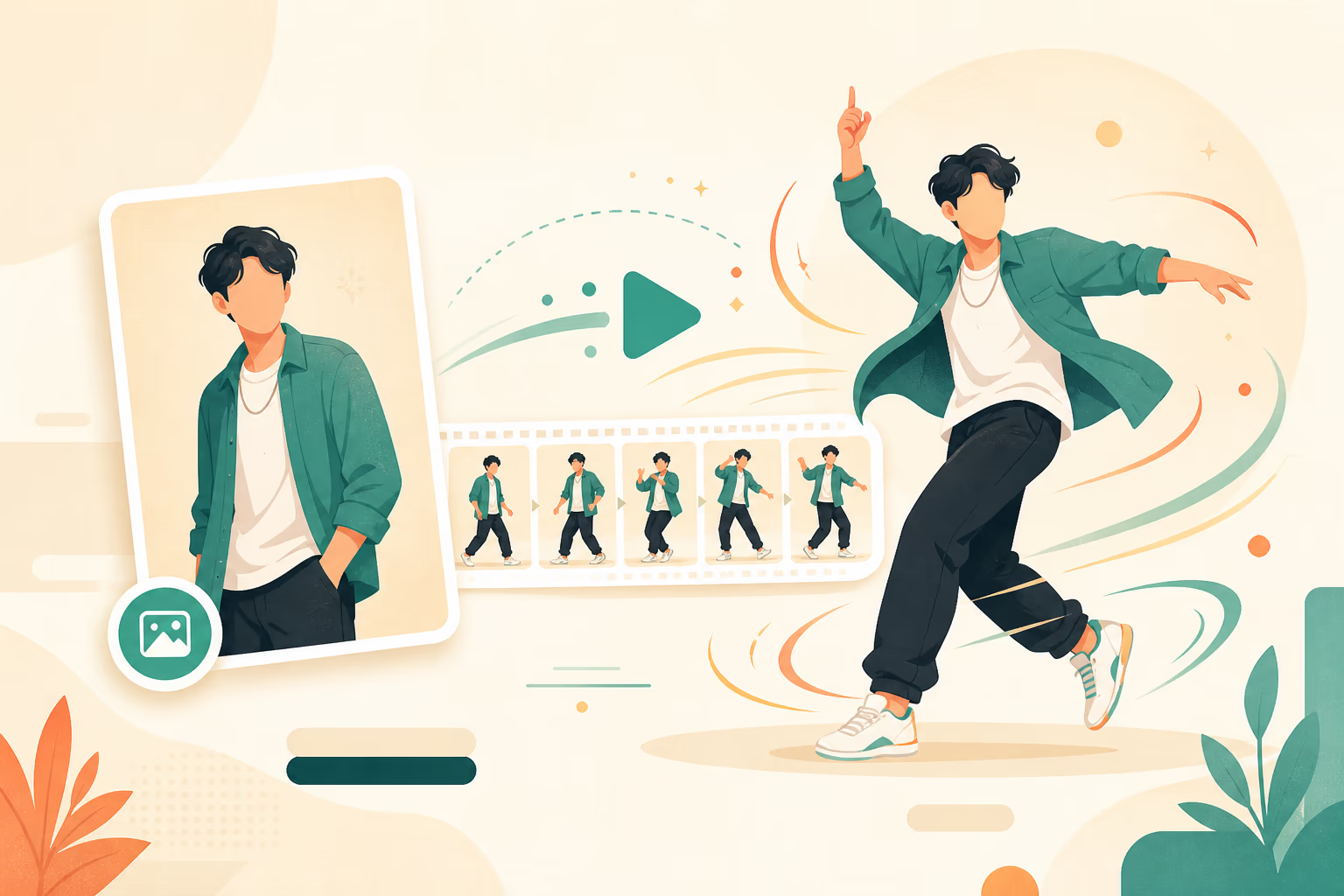
How to Create a Viral AI Dance Video (Step-by-Step Guide)
Learn how to turn a single photo into a realistic AI dance video in minutes. Complete workflow, prompt tips, and troubleshooting guide for beginners.
You have seen those AI dance videos flooding TikTok, Reels, and Shorts — a still photo suddenly moving, dancing, and performing like a real clip. Some look flawless. Others look like a glitchy mess.
The difference is never luck. It is always the same small set of decisions: which photo you start with, how you describe the motion, and what you do after the first generation.
This guide walks through the full workflow — from preparing your source image to exporting a share-ready clip. No prior editing experience needed.
What you will need
- A clear, well-lit photo of a person (full-body or waist-up)
- Access to an AI dance video generator (we use AI Dance Generator for this guide)
- About 10 minutes for your first good result
Step 1: pick the right source photo
The single biggest factor in output quality is the photo you start with. A bad photo will produce a bad result no matter how good the tool is.
What works best:
- Full-body shots with both arms visible
- Front-facing poses with neutral backgrounds
- Well-lit images without harsh shadows on the face
- Clothing with clear edges and distinct shapes
What to avoid:
- Cropped portraits or headshots (the AI has to invent limbs, which causes distortion)
- Busy backgrounds with multiple people or complex patterns
- Photos where limbs are cut off at the frame edge
- Heavy filters, extreme angles, or fisheye distortion
If you only have a portrait, crop it to include at least the shoulders and upper chest. The more body context the model has, the more natural the movement will look.
Step 2: choose a dance style or motion reference
Most AI dance tools offer two ways to define the motion:
| Method | How it works | Best for |
|---|---|---|
| Preset templates | Select from a library of pre-made dance moves | Quick results, trending dances, no reference video needed |
| Motion reference video | Upload a video of someone dancing and the AI copies the motion onto your photo | Custom choreography, specific dance styles, original content |
If you are just starting, use a preset. Pick a dance that matches your video's vibe — hip-hop for energy, slow sway for aesthetic reels, group choreography for couple or friend content.
Step 3: configure the generation settings
Upload your photo, select your dance style, and adjust these settings before generating:
- Aspect ratio: 9:16 for TikTok, Reels, Shorts. 1:1 for Instagram feed. 16:9 for YouTube.
- Duration: Start with 5–10 seconds. Longer clips increase the chance of drift or distortion.
- Quality mode: Use the highest available. Free tiers often limit resolution — upgrade if you need watermark-free HD output.
If the tool supports prompts, add a short motion direction:
Subject dances with smooth, natural hip-hop movements.
Camera stays static. Lighting remains consistent throughout.
No morphing or face distortion.
Avoid vague phrases like "cinematic" or "dynamic." Be specific about what should and should not happen.
Step 4: review the first generation
Your first result will rarely be perfect. Watch the clip and check:
- Face consistency — Does the face stay recognizable throughout? Or does it morph into someone else?
- Limb movement — Do arms and legs move naturally? Or do they warp, twist, or disappear?
- Background stability — Does the background stay consistent? Or does it flicker?
- Clothing and edges — Are clothing details preserved? Or do they bleed and smear?
- Motion smoothness — Is the movement fluid? Or does it stutter?
If 3 out of 5 look good, you are close. If fewer than 3 look good, go back to Step 1 and try a different source photo — it is almost always the photo, not the tool.
Step 5: iterate and refine
Small adjustments make big differences:
- Motion too aggressive? Switch to a slower preset or reduce the motion intensity if the tool lets you.
- Face drifting? Try a photo with better lighting on the face. Front-facing, even light is ideal.
- Background warping? Use a photo with a cleaner background, or crop tighter around the subject.
- Clothing bleeding? Choose a photo where the subject wears fitted clothing with clear outlines. Loose, flowing fabric confuses motion models.
Generate 3–5 variants before settling on one. Keep the best one and delete the rest.
Step 6: export and share
Once you have a clip you like:
- Export at the highest resolution available (1080p minimum for most platforms)
- Trim the start and end if there is any initialization stutter
- Add music that matches the dance tempo — most short-form platforms let you add trending audio after upload
- If desired, add auto-captions in CapCut or the platform's built-in editor
- Post during peak hours for your audience (evenings and weekends typically perform best for entertainment content)
Pro tips for better results
Match the starting pose. If you are using a motion reference video, try to match your source photo's pose to the first frame of the reference. A person standing straight in the photo but the reference starts mid-spin = the AI has to work much harder.
Keep it short. 5–8 seconds is the sweet spot for social media dance clips. Longer clips increase the chance of visible artifacts and drop viewer retention.
Batch your generations. Generate 5 clips in one session, pick the best one, and save the rest as drafts. You will always get variation between generations — use it to your advantage.
Test the loop. If you want a seamless looping video, pick a dance that starts and ends in a similar pose. Trim the clip so the first and last frames match as closely as possible.
Use good reference videos. If uploading your own motion reference, use a single dancer, stable camera, clean background, and a clip under 10 seconds. Avoid frantic zooming, quick cuts, or multiple people.
Common mistakes and how to fix them
| Problem | Likely cause | Fix |
|---|---|---|
| Face morphs into someone else | Source photo has poor facial lighting | Use front-lit, even lighting. Avoid strong side shadows. |
| Arms twist or disappear | Photo crops limbs at the frame edge | Use a wider shot that includes full arms and hands. |
| Background flickers | Busy or patterned background | Use a photo with a plain wall or solid background. |
| Motion looks robotic | Dance style too complex for the model | Try a simpler preset with fewer fast direction changes. |
| Output is blurry | Low-quality source image | Use a photo with at least 1080p resolution. |
| Generation takes too long | Server queue or high demand | Try during off-peak hours or upgrade to a paid plan for priority. |
Frequently asked questions
Can I use any photo?
You can, but results vary significantly. Full-body portraits with clear faces, minimal backgrounds, and even lighting produce the best results. Group photos, pet photos, and stylized artwork can also work but may require more trial and error.
How long does it take?
Most generators produce a 5-second clip in 1–3 minutes. Free tiers may be slower during peak hours. Paid plans typically offer faster generation and priority access.
Is it free?
Many AI dance generators offer free daily credits — enough to test the tool and create a few clips. Paid plans unlock higher resolution, watermark removal, faster generation, and more daily usage.
What is the best AI dance generator?
Kling AI's Motion Control feature is widely considered the best for realistic human motion. Viggle AI is great for quick, fun meme-style clips. For the best balance of quality and ease of use, try our AI Dance Generator — it supports photo-to-dance, custom motion references, and HD export.
Why does my result look different from the preview?
AI generation is non-deterministic — each run can produce a subtly different result even with the same inputs. This is why generating multiple variants (Step 5) is important. Small differences in each run let you pick the best version.
Can I make group dance videos?
Yes. Some tools support multi-character generation where you upload multiple photos and assign different positions. Results are less consistent than single-person videos, but the technology is improving rapidly.
Ready to make your own AI dance video? Start creating for free →
Author

Categories
More Posts
AI Body Swap for TikTok: How to Create Viral Content That Actually Works
A practical guide to making AI body swap videos for TikTok — what types of content perform best, how to prepare your shots, and how to avoid the mistakes that get your video scrolled past.
How to Animate a Character from a Photo with AI
Learn how to animate a character from a photo using a reference video. Prepare the image, transfer motion, write prompts, and fix common animation problems.
How to Body Swap in a Video With AI: A Practical Workflow
Learn how to body swap in a video with AI using a character image and reference clip. Follow the real input limits, settings, review steps, and fixes.