
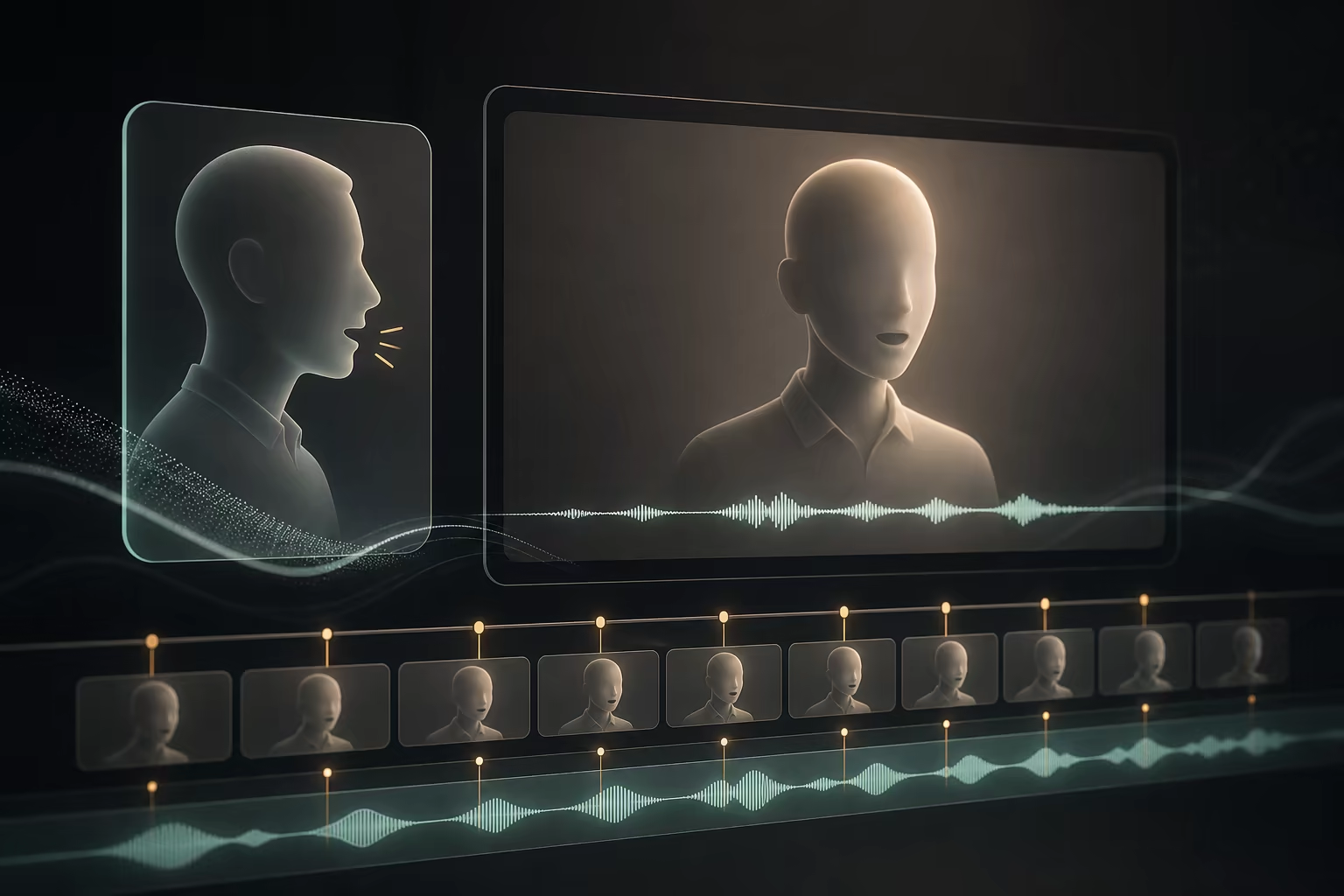
Kling AI Motion Control Tutorial: Prompts, Workflow & Fixes
Learn how to use Kling AI Motion Control with a character image and reference video. Compare Kling 2.6 vs 3.0, write prompts, fix drift, and create consistent clips.
Kling AI Motion Control takes a still character image and a reference video, then generates a new clip in which the character follows the reference movement. It is useful when you need repeatable choreography, gestures, expressions, or performance instead of motion invented from a text prompt.
Quick answer: To use Kling AI Motion Control, upload a clear character image and a stable, single-person reference video, match the framing of both inputs, choose Kling 2.6 or Kling 3.0, and use the prompt for scene and quality guidance rather than describing the movement again. You can open the Kling AI Motion Control tool and follow the complete workflow below.
The gap between "it works" and "it works reliably for a project" is still wide. Most failed generations come from character drift, faces that morph mid-clip, mismatched framing, complex reference footage, or prompts that conflict with the reference movement. This tutorial shows how to diagnose those problems and build a repeatable workflow.
When to use Motion Control vs regular Image-to-Video
Before you even open the tool, decide whether Motion Control is the right mode for your goal. Using the wrong mode is the most common reason people waste credits.
| Your goal | Use this mode | Why |
|---|---|---|
| Make a photo of a person dance, walk, or perform a specific action | Motion Control | You need the AI to copy a specific movement from a reference |
| Animate a static scene with camera movement only | Image-to-Video | You do not need motion transfer — just describe the camera move in the prompt |
| Create a completely new scene from a text description | Text-to-Video | No source image needed; you are generating everything from scratch |
| Extend an existing video clip | Video Extend | You already have motion and want more of it |
Motion Control shines when you have a clear target movement in mind and a reference that demonstrates it. If you do not have a reference video, you are better off with Image-to-Video and a well-written prompt.
Kling 2.6 vs Kling 3.0 for Motion Control
Both engines use the same basic input workflow: a character image, a reference motion video, and an optional scene prompt. Choose the engine based on the result you need rather than assuming the newest option is automatically best for every clip.
| Decision | Kling 2.6 | Kling 3.0 |
|---|---|---|
| Best fit | Straightforward full-body motion and longer one-shot clips | Stronger identity, expression, and difficult occlusion handling |
| Use it when | The reference has one visible subject and a clear continuous action | Facial detail, emotion, or character consistency matters most |
| Available output in this tool | 720p or 1080p, up to 30 seconds | 720p or 1080p, up to 30 seconds |
| Practical first test | Validate framing and motion with a short draft | Use after the image and reference pairing is already working |
For a single, clean dance or walking clip, Kling 2.6 remains a practical starting point. For expressive performance, partial occlusion, or a sequence where identity consistency matters more, Kling 3.0 is usually the better choice.
How to pick a reference video that actually works
The reference video is the single most important input. A bad reference will produce a bad result regardless of your source image or prompt quality. Here is what matters, ranked by impact:
1. Single person, full body visible
The model needs to see the entire body to track the motion correctly. References where the dancer is partially cropped, obscured by objects, or standing behind someone else will produce distorted results.
Good: One person dancing in frame, both arms and legs visible throughout. Bad: Group dance, person partially off-screen, close-up of upper body only.
2. Stable camera, no cuts
Every time the camera moves or cuts, the model has to re-interpret the scene from scratch. This creates visible jumps and artifacts in the output.
Good: Tripod shot, no zooming, no panning, no edits. Bad: Handheld footage, whip pans, music video with rapid cuts.
3. Duration: 5 to 12 seconds
Shorter than 5 seconds gives the model too little motion data to work with. Longer than 12 seconds increases the risk of drift — where the character slowly morphs away from the original identity.
The sweet spot is 8-10 seconds for a single continuous action. If you need a longer clip, generate multiple short clips and stitch them.
4. Clean, simple background
The model tracks the subject relative to the background. A busy background — patterned wallpaper, moving objects, crowd scenes — confuses the tracking and causes the character to warp.
Good: Plain wall, studio backdrop, empty room. Bad: City street with traffic, forest with moving leaves, office with people walking by.
5. Lighting that matches your source image
If your source photo is shot in soft, diffused daylight but your reference video has harsh stage lighting, the model struggles to reconcile the two. The result often looks composited rather than natural.
Try to match the lighting direction and quality between your source image and the first frame of your reference video. It does not need to be perfect, but extreme mismatches will show.
Where to find reference videos
- Kling's built-in template library (if available in your region)
- Stock footage sites filtered for "dance," "walking," or "movement" with tripod + single person
- Record your own with a phone on a tripod — this gives you the most control and avoids copyright concerns
Source image preparation: the details that matter
Most guides tell you to "use a good photo." That is not helpful. Here is what specifically breaks and how to prevent it.
Face visibility
If the model cannot clearly see the face in your source image, it will invent one — and it will not look like the original person.
- Front-facing or slight 3/4 angle works best
- Profile shots are risky — the model has less facial data to work with
- Sunglasses, masks, or heavy shadows on the face almost always fail
Clothing that reads well
Loose, flowing clothing like maxi dresses, wide-leg pants, or oversized jackets creates problems. The model tries to animate the fabric but cannot predict how it should move — the result is smearing, flickering, or fabric that moves independently from the body.
- Fitted clothing with clear edges produces the cleanest results
- Solid colors work better than busy patterns
- If you must use flowing fabric, expect to generate more variants and pick the best one
Resolution and format
- Minimum 1080p on the short side
- JPEG or PNG, under 10MB
- Avoid images that have already been heavily compressed (visible JPEG artifacts)
- No watermarks, text overlays, or stickers on the image
Cropping: the limb problem
The most common source image mistake is cropping off limbs. If the reference video shows a full-body dance but your source photo only shows the person from the waist up, the model has to invent legs. The result is almost always unnatural.
Either use a full-body source photo, or use a reference video that only shows upper-body movement (like hand gestures or head turns).
Prompt writing for Motion Control
In Motion Control mode, the prompt plays a different role than in Text-to-Video. The motion comes from the reference video — the prompt is for scene direction, styling, and quality control.
The prompt structure that works
A useful Motion Control prompt has three parts:
[Character description] + [Scene environment] + [Quality constraints]Character description — Describe the person in your source image. Be specific about what should stay consistent:
A young woman with shoulder-length black hair, oval face, light brown eyes,
wearing a fitted white t-shirt and dark jeans.
Scene environment — Describe the background and lighting in your reference video. This helps the model fuse the two inputs:
The subject performs against a plain light gray studio backdrop with soft,
even front lighting. No shadows on the background wall.
Quality constraints — These are not creative directions. They are guardrails that reduce common failure modes:
High fidelity, natural motion, stable face identity throughout, no morphing,
no distortion on hands or feet, consistent clothing detail.
What to avoid in Motion Control prompts
Do not describe the motion itself in the prompt — the reference video supplies that. Adding motion descriptions like "dancing energetically" or "walking slowly" can conflict with the reference and produce worse results.
Do not use vague aesthetic words like "cinematic," "beautiful," or "stunning." They add no useful signal and can introduce unpredictable styling.
Do not write extremely long prompts. Beyond 150-200 words, the model starts ignoring parts of the instruction. Keep it tight and specific.
Example prompts for common scenarios
Dance video (TikTok/Reels style):
A person with the exact face and body from the source image.
Plain studio background with even softbox lighting from the front.
9:16 vertical framing. Natural fabric movement on clothing.
No face swapping, no identity drift, no background warping.
Product or fashion showcase:
The subject from the source image, wearing the exact outfit shown.
Clean white cyclorama background. Soft key light from above left,
subtle fill from right. The clothing details and fabric texture
must remain sharp and consistent. No color shift, no pattern distortion.
Character animation for longer projects:
[CHARACTER LOCK] The subject from the source image — exact face,
exact body proportions, exact clothing. Plain neutral background.
Consistent identity from first frame to last frame.
No gradual face changes. No limb warping. No background artifacts.
The [CHARACTER LOCK] tag has no special meaning to the model — but it signals to you that this prompt block should be reused identically across every clip in a multi-shot project. Consistency in your input is what produces consistency in the output.
The generation workflow, step by step
Step 1: Upload and preview
Upload your source image and reference video. Before generating, check:
- Does the preview show your full image, correctly cropped?
- Does the reference video play back correctly?
- Are the aspect ratios compatible?
Step 2: Select quality mode
- Standard mode: Faster generation, lower per-clip cost. Use for drafts and experiments.
- Pro mode: Slower, higher cost, but noticeably better at preserving fine details like fingers, facial expressions, and fabric texture. Use for final outputs.
Start with Standard mode to test your setup. Switch to Pro once you have confirmed the image + reference combination works.
Step 3: Set duration
Match the duration to your reference video. If your reference is 8 seconds, set the output to 8 seconds. Trimming the reference to exactly what you need before uploading is better than generating a longer clip and hoping the model handles the extra time well.
Step 4: Write the prompt
Use the three-part structure above. Keep it under 150 words. Focus on the character, scene, and quality constraints — not the motion.
Step 5: First generation and review
Your first result is a diagnostic, not a final product. Check these five things in order:
- Face identity — Is it still the same person at the end of the clip? If the face drifts even slightly, the source image likely has lighting or angle issues.
- Hands and feet — Do they stay consistent, or do fingers merge and toes warp? Hand degradation is the most common failure mode. If hands are important to your shot, generate in Pro mode.
- Clothing edges — Is there a sharp boundary between the subject and background, or does the clothing bleed into the surroundings? Clothing bleed usually means the background in your reference is too busy.
- Motion fidelity — Does the output movement match the reference? If the motion is significantly weaker or different, the reference video may be too complex for the model to parse.
- Background stability — Does the background flicker or shift? If yes, the model is confused about what is foreground vs background.
Step 6: Iterate based on what you see
| What you see | What to change |
|---|---|
| Face identity drifts after 3-4 seconds | Better source image lighting. Front-lit, even exposure. Or try Pro mode. |
| Hands look like mittens | Pro mode is almost always required for hand detail. Standard mode rarely gets fingers right. |
| Motion is weaker than the reference | Your reference may have fast, complex movement. Try a slower, simpler reference. |
| Background flickers | Use a reference with a cleaner background. Or crop your source image tighter around the subject. |
| Clothing smears into the background | The subject's clothing color may be too similar to the reference background. Use a reference with contrasting background. |
| Output looks "swimmy" or dreamlike | Reduce the prompt length. Too many descriptive words can cause temporal inconsistency. |
Multi-clip projects: keeping the character consistent
This is the hardest thing to do in Kling AI Motion Control, and the reason most AI-generated character videos fall apart after the first clip.
The source image strategy
Use the same source image for every clip. Do not switch to a different photo of the same person — even subtle differences in angle, expression, or lighting will cause the character to shift between clips.
If you need multiple angles of the same character, generate a character reference sheet first (using an image model like FLUX or Kling's image generation), then use the front-facing shot as your Motion Control source for every clip.
The prompt locking strategy
Write one character description block. Use it verbatim in every single prompt. Changing even one adjective — "wavy black hair" to "curly black hair" — can produce a visibly different result.
Store your character prompt block in a text file. Copy-paste it. Do not rewrite it from memory.
The clip length strategy
Keep individual clips to 5-8 seconds. Longer clips accumulate drift. If you need a 30-second sequence, generate four 7-8 second clips with different reference videos, then stitch them in an editor.
The final frame trick
If you are stitching clips into a sequence, take the last frame of clip 1 and use it as the source image for clip 2. This locks the visual identity across the transition. Repeat for each subsequent clip. This is the closest thing to a "hack" for multi-clip consistency — it works more reliably than using the same source image for every clip.
Kling AI Motion Control troubleshooting: common failures and fixes
Before changing models or spending more credits, check the source image, reference video, framing, and prompt separately. The symptom usually points to the input that needs to change.
Motion Control is not the right tool for every situation. Recognize when to switch approaches.
Fast, acrobatic movement
Motions like backflips, rapid spins, or complex breakdancing often fail because the model cannot track the body through such extreme pose changes. Try these instead:
- Use Image-to-Video with a detailed motion prompt
- Slow down the reference video before uploading
- Break the movement into shorter, simpler segments
Multiple people interacting
Motion Control struggles with two or more people because it has to track multiple bodies simultaneously. Hugging, fighting, or dancing together usually produces tangled results. For multi-person scenes:
- Try Viggle AI's multi-character mode
- Generate each person separately and composite them in post-production
- Use Text-to-Video with a detailed scene description
Extreme close-ups
When the reference video is a tight close-up of a face, the model has very little body context to work with. Lip-sync and subtle facial expressions can work, but anything involving head turns or hair movement often fails.
- Use Image-to-Video for facial animation
- Or use a dedicated lip-sync tool like HeyGen or Sync Labs
Frequently asked questions
Why does my output look nothing like the reference video?
The most common cause is a reference video that is too complex — multiple people, moving camera, quick cuts, or cluttered background. The model cannot separate the motion from the scene noise. Try a simpler reference: single person, tripod shot, plain background.
How do I get rid of the "AI look"?
The uncanny AI sheen usually comes from three things: over-smoothed skin texture, inconsistent lighting between source and reference, and the model's default tendency toward airbrushed faces. To reduce it:
- Use a source image with visible skin texture (not a beauty-filtered photo)
- Match lighting between source and reference as closely as possible
- Add "natural skin texture, photorealistic, unretouched" to your quality constraints
- Generate in Pro mode, which preserves more detail
How many credits does a typical clip cost?
Kling AI Motion Control is billed per second. A 5-second clip costs:
- Kling 2.6 Standard: 60 credits (10 credits/sec × 5s)
- Kling 2.6 Pro: 120 credits (20 credits/sec × 5s)
- Kling 3.0 Standard: 102 credits (17 credits/sec × 5s, includes audio)
- Kling 3.0 Pro: 204 credits (34 credits/sec × 5s, includes audio)
Most projects need 3-5 generations to get one usable clip. In Kling 2.6 Standard, budget 180-300 credits per final clip. In 3.0 Pro, budget 600-1,000 credits. This is why testing your setup in Standard mode first matters — a failed Pro generation costs 4× more than a failed Standard one.
For context: the Basic plan gives you 1,200 credits/month, which is roughly 20 Kling 2.6 Standard clips or 6 Kling 3.0 Pro clips. Plan your generations accordingly.
Can I use copyrighted music videos as reference?
Technically yes, but the legal situation is unclear. The output video contains the motion pattern from the reference, which could be considered a derivative work. For commercial projects, use royalty-free stock footage or record your own reference. For personal/experimental use, the risk is low.
What is the difference between Kling 2.6 and Kling 3.0 for Motion Control?
In this tool, Kling 2.6 is a practical choice for straightforward full-body motion and longer one-shot clips. Kling 3.0 places more emphasis on character identity, complex expression, and recovery when the reference contains occlusion. Start with the engine that matches the shot, then compare a short draft before committing credits to the final resolution.
Does Motion Control work with non-human subjects?
Yes, but results vary. Animals, cartoon characters, and stylized 3D renders can work if the reference motion is simple. The model was primarily trained on human motion, so human subjects produce the most reliable results. For animal motion, expect to need more generations per usable clip.
Ready to try Kling AI Motion Control? Start creating →
Author

Categories
More Posts
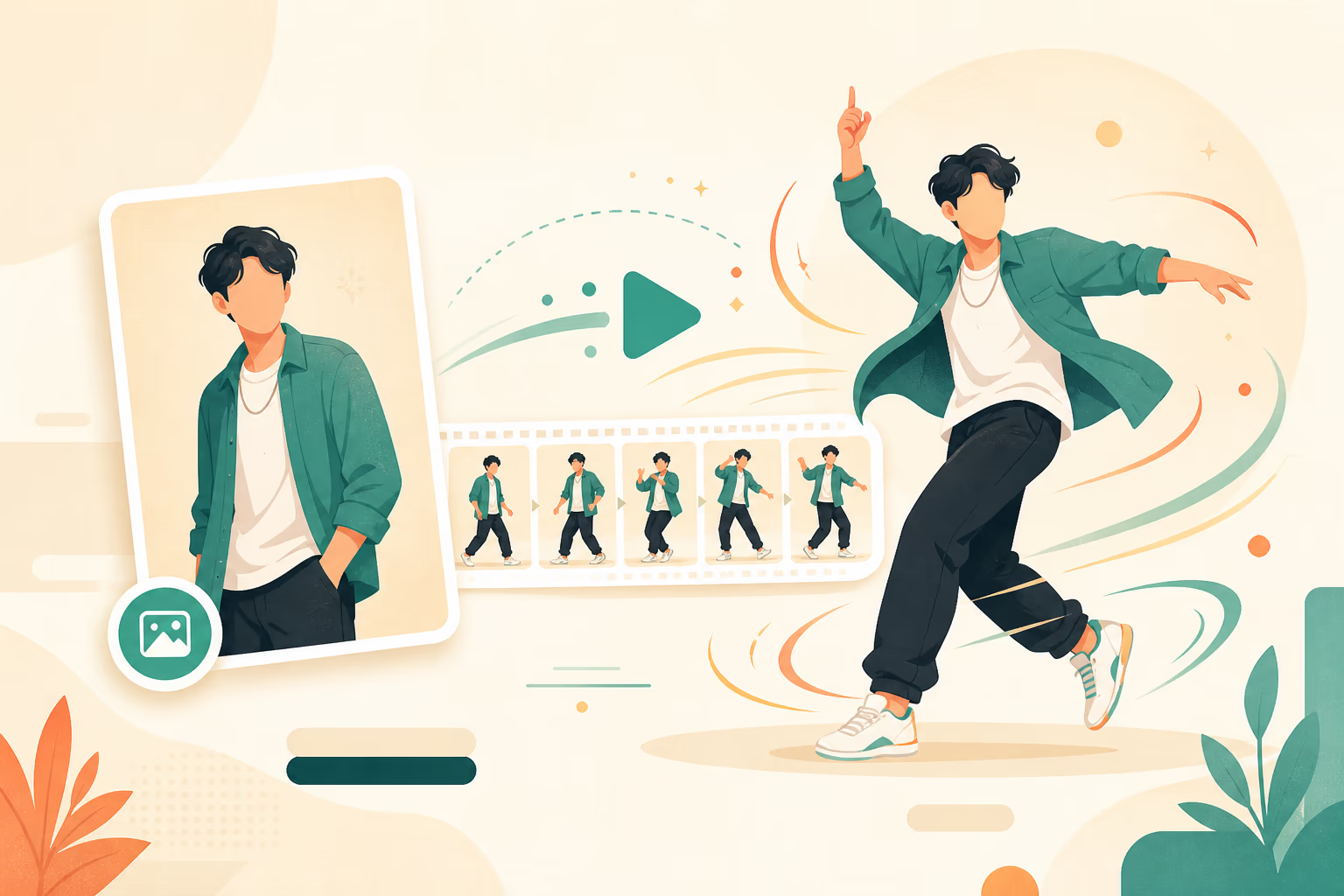
How to Create a Viral AI Dance Video (Step-by-Step Guide)
Learn how to turn a single photo into a realistic AI dance video in minutes. Complete workflow, prompt tips, and troubleshooting guide for beginners.
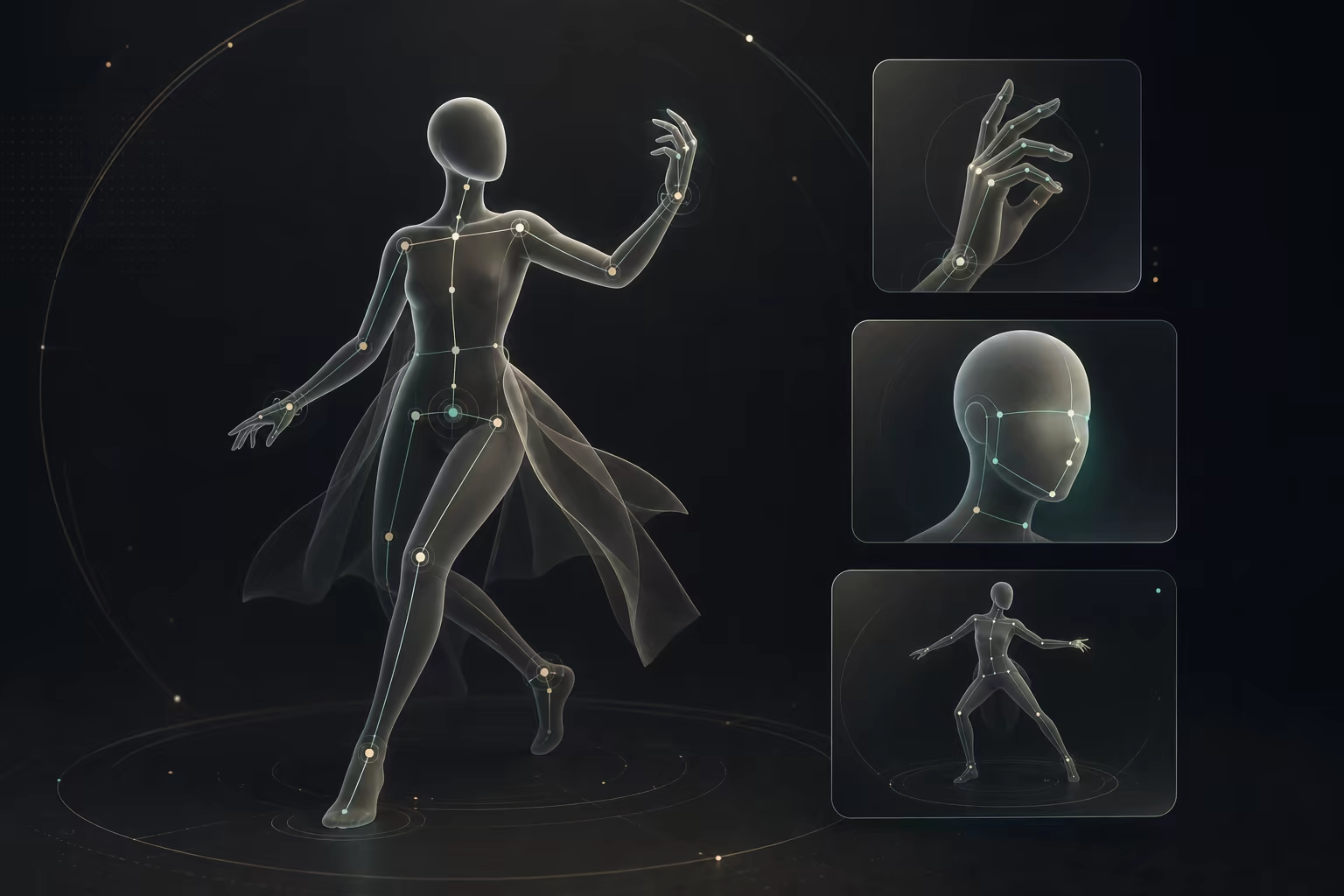
How to Body Swap in a Video With AI: A Practical Workflow
Learn how to body swap in a video with AI using a character image and reference clip. Follow the real input limits, settings, review steps, and fixes.
How to Transfer Motion From Video to Character With AI
Learn how to transfer motion from video to character with AI. Prepare the image and reference clip, choose real settings, write prompts, and fix common failures.