
Talking Pet AI Video Generator
Make Your Pet Talk
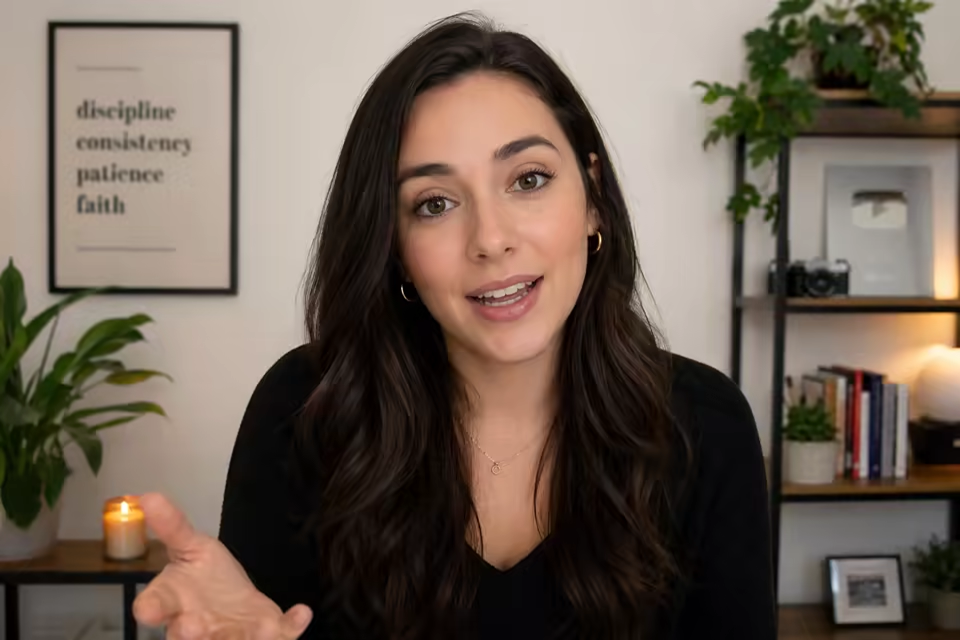
Choose a character
Start with a presenter, stylized character, or mascot.
Optional visual direction for how the person should behave while speaking.
Use the visual prompt without automatic expansion.
Turn a pet photo into a talking video
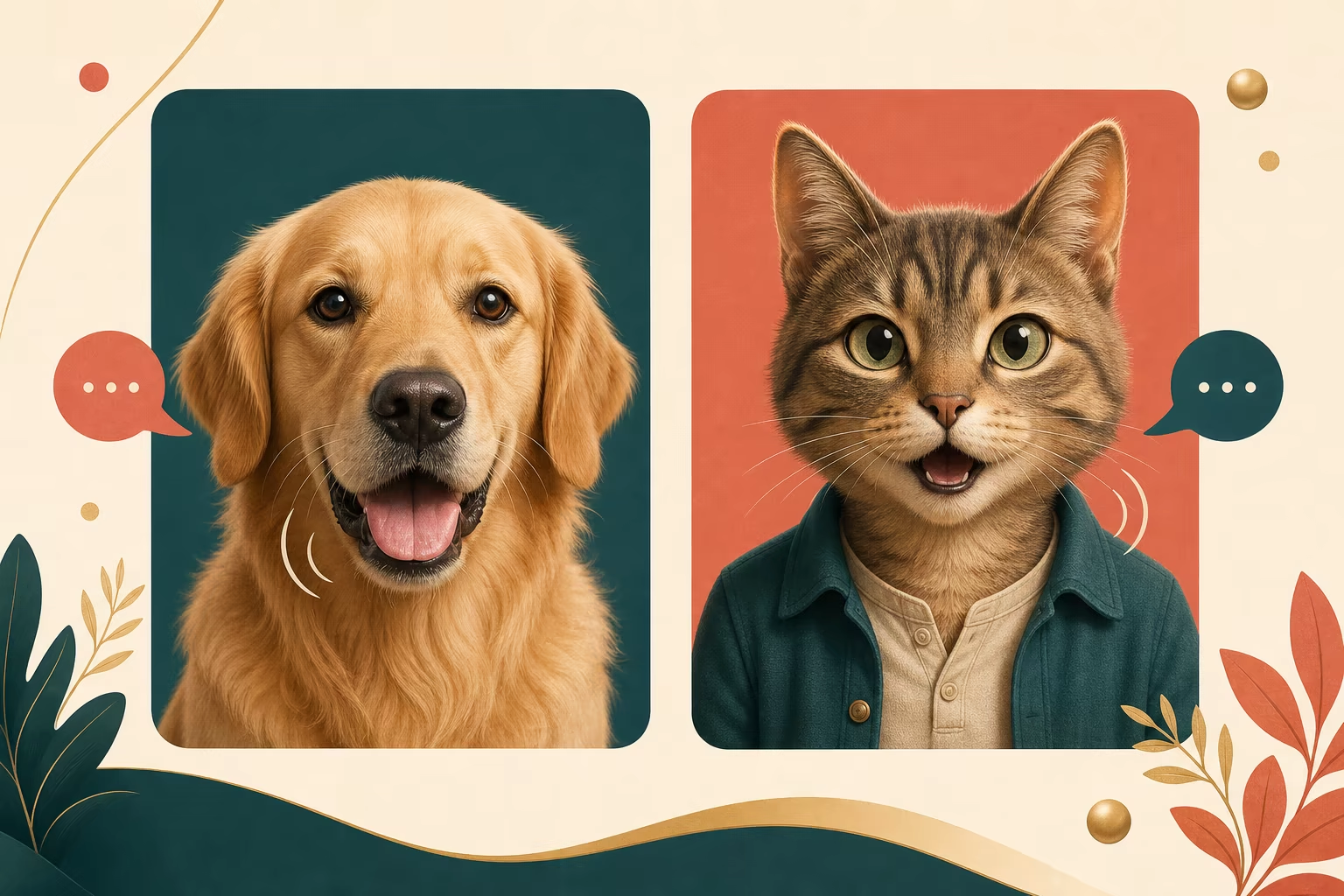
Start with one permitted cat, dog, or animal portrait and use P Video Avatar to drive it with uploaded speech or a generated voice. If you already have suitable pet footage, switch to PixVerse Lip Sync and add replacement audio.
Animal results depend strongly on face shape and framing. Generate a short test first, especially for side profiles, long snouts, fur covering the mouth, or stylized pets.
Talking-pet creation options
Choose a pet photo for the fastest workflow or an existing video when you want to preserve source movement.
Pet photo animation
Create a talking clip from one clear animal portrait and a speech source.
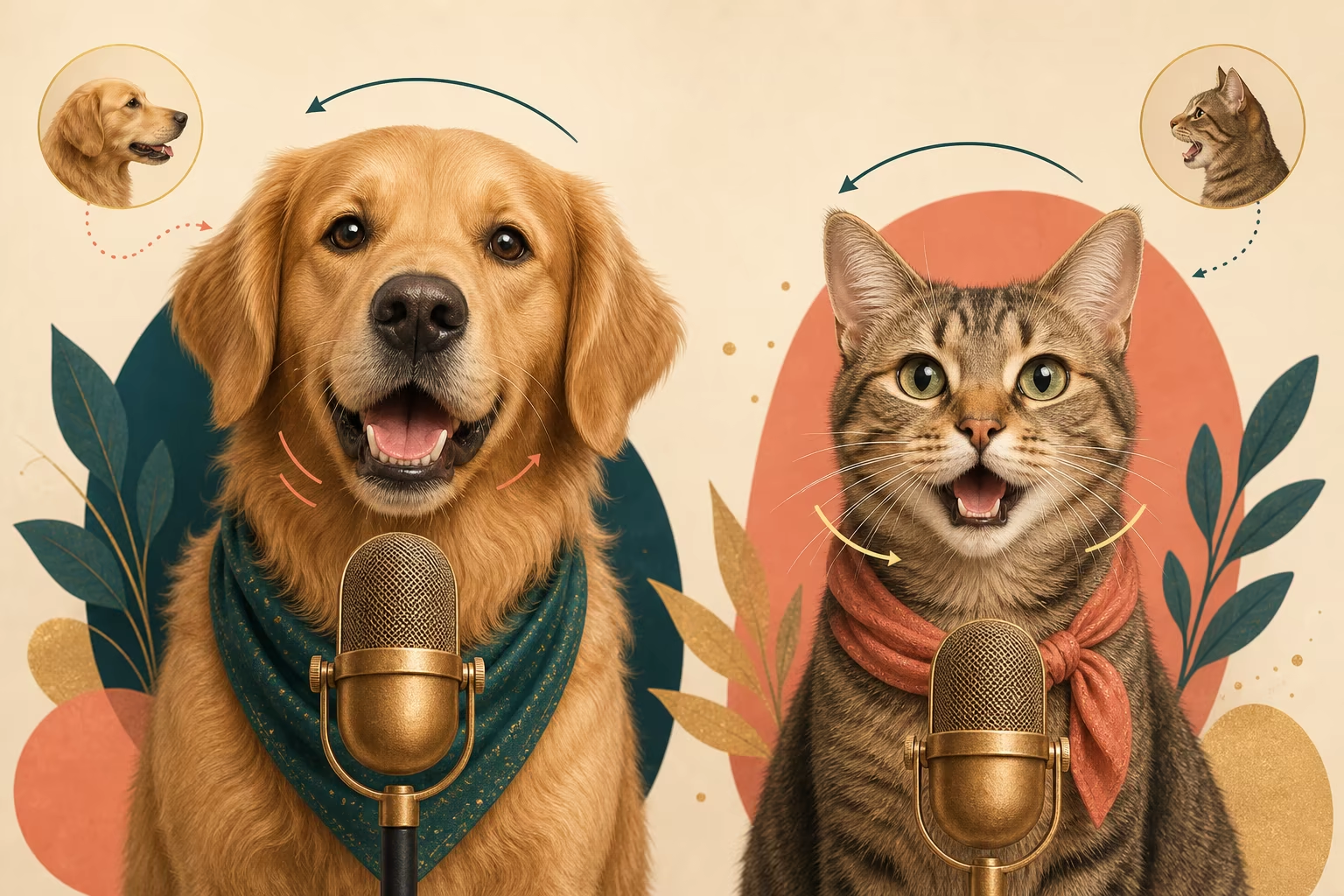
Existing pet video lip sync
Add a new voice track to footage where the animal face remains visible.
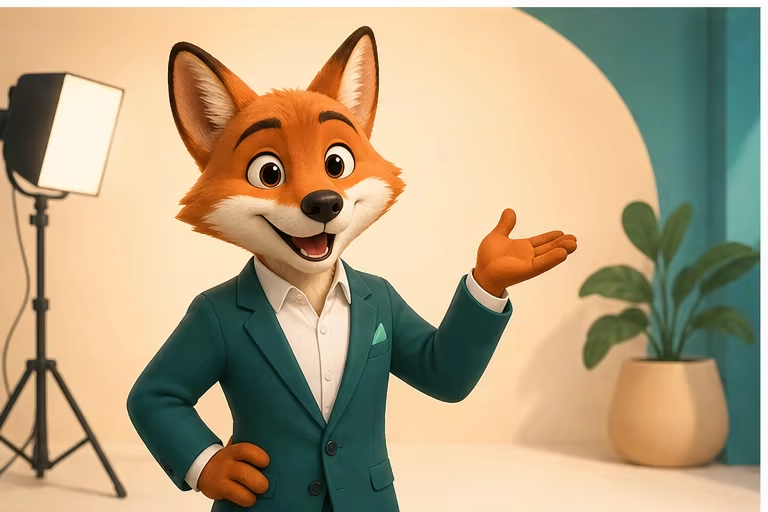
Scripted pet voices
Write a line and choose a generated voice in the photo workflow.
How to make pet lip-sync videos
Choose the workflow that matches the media you already have. The form changes automatically with the selected model.
Upload a photo or choose video mode
Start with a clear pet image for P Video Avatar, or switch to PixVerse Lip Sync when you already have a source video.
Add speech
Upload clean audio, or use the photo workflow to write a script and choose a generated voice and language.
Generate and review
Create the video, check mouth timing and identity consistency, then download the finished MP4.
Talking-pet video ideas
Create playful, personal, and shareable animal content.
Pet reactions and jokes
Turn a favorite expression into a short comedic response or social post.
Greetings and announcements
Let a pet deliver a birthday message, invitation, or family update.
Pet creator content
Build recurring speaking-pet formats for Shorts, Reels, and TikTok.
Workflow essentials for Talking Pet AI Video Generator
Inputs, recommended setup, and the most common fixes—summarized in one compact guide.
Inputs and setup
- P Video Avatar — portrait image plus script or audio; PixVerse Lip Sync — existing video plus uploaded audio.
- Image formats: JPG, JPEG, PNG, and WebP.
- Uploaded audio, or script and generated voice in photo mode; 720p or 1080p MP4, selected before generation.
- Use a front-facing pet with a visible mouth and minimal obstruction.
Two quick fixes
Talking Pet AI Video Generator FAQ
Can I start from a single image?
Can I lip-sync an existing video?
Do I need to record my own voice?
Which model should I choose?
What images work best for pets?
Are the preview videos actual model examples?
More tools in AI Talking Photo Generator
Compare other focused workflows in the same AI Talking Photo Generator collection.
View AI Talking Photo Generator
AI Singing Photo Generator
AI Singing Photo Generator turns a photo and owned or licensed song or vocal audio into a lip-synced video for music clips, greetings, and characters.
Open tool
AI Baby Talking Video Generator
Create an AI baby talking video from one permitted photo and a script or audio, or lip-sync an existing baby video to new speech.
Open toolCreate your pet lip-sync video
Start from a photo or an existing video, add speech, and generate the synchronized result in the same form.